Every guide on one page, with screenshots. Use your browser's print dialog to save it as a PDF.
1. Getting started
Create a workspace, take the tour and do something useful in your first ten minutes.
Create your workspace
A workspace is your team's account: its members, its data, its credits and its bill. Every workspace gets its own separate database, so nothing you store is visible to another customer.
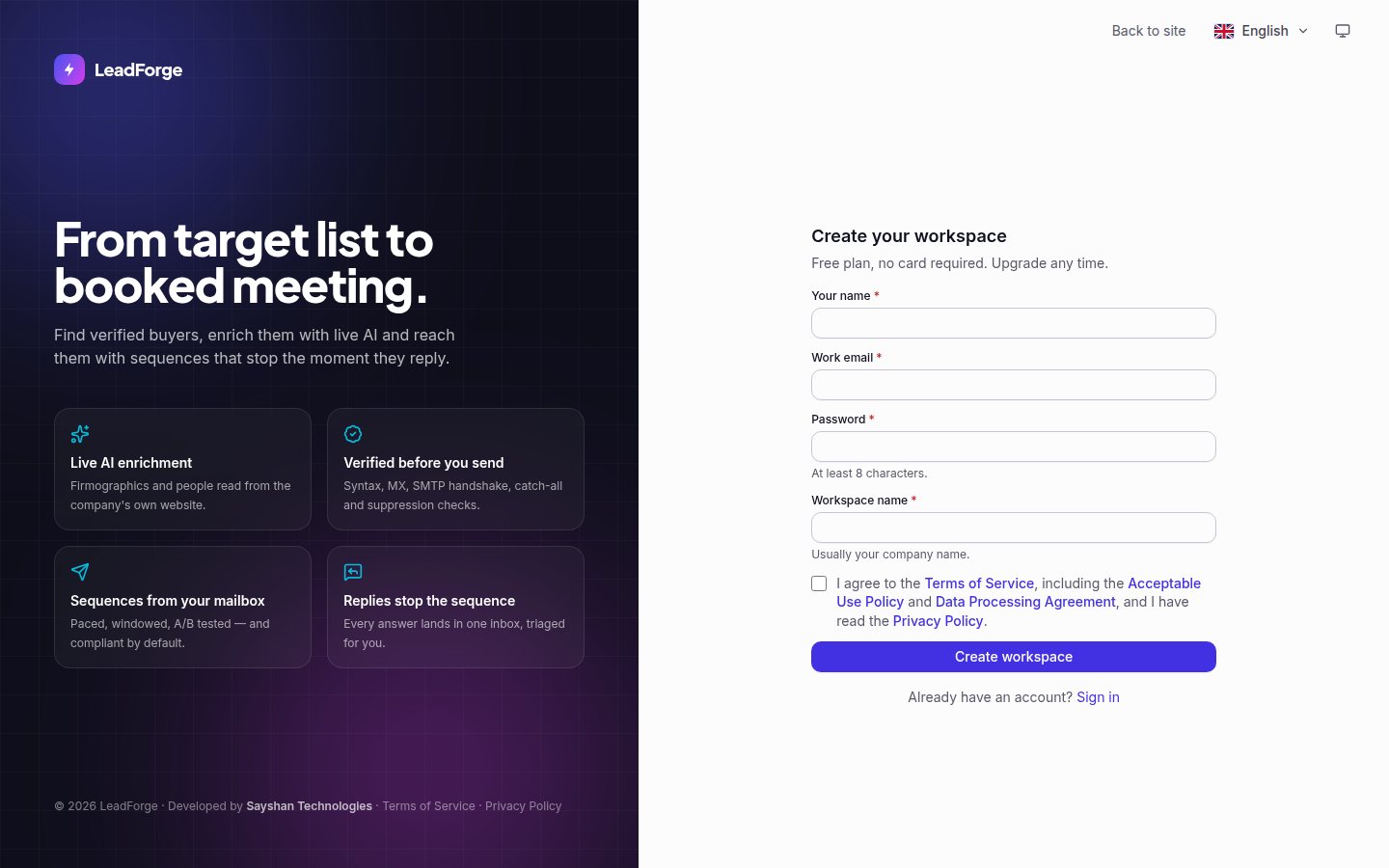
1Open the sign-up page and enter your work email, a password and, if you like, your name and a workspace name.
2Choose a password of 8 to 128 characters that mixes letters with digits or symbols.
3Tick the box that accepts the Terms of Service, Acceptable Use Policy, DPA and Privacy Policy. Sign-up is refused without it.
4You are signed in straight away on the Free plan with 100 credits. Click the link in the "Confirm your email address" message we send (valid for 48 hours).
The sign-up page. No card is needed for the Free plan.
Take the guided tour
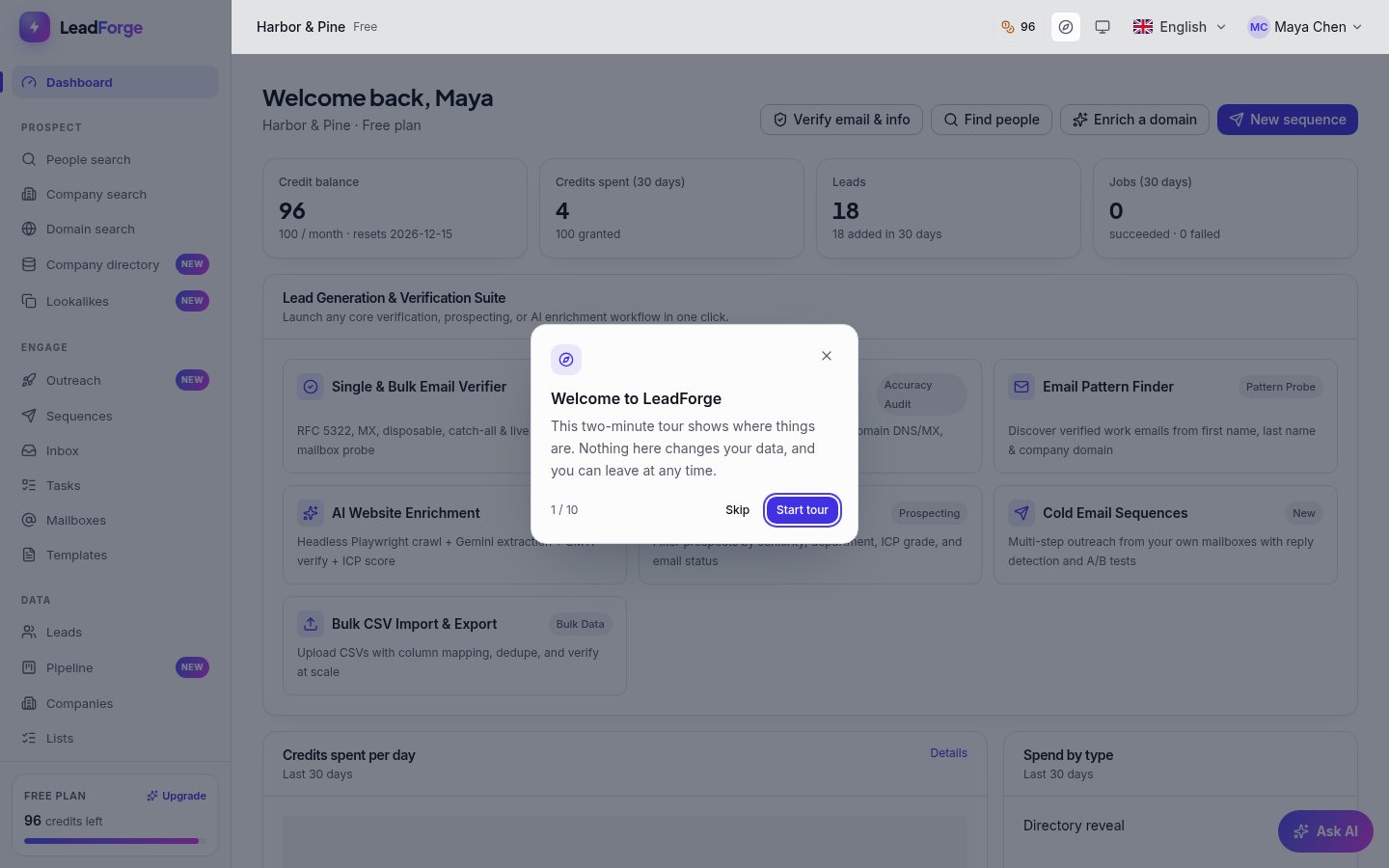
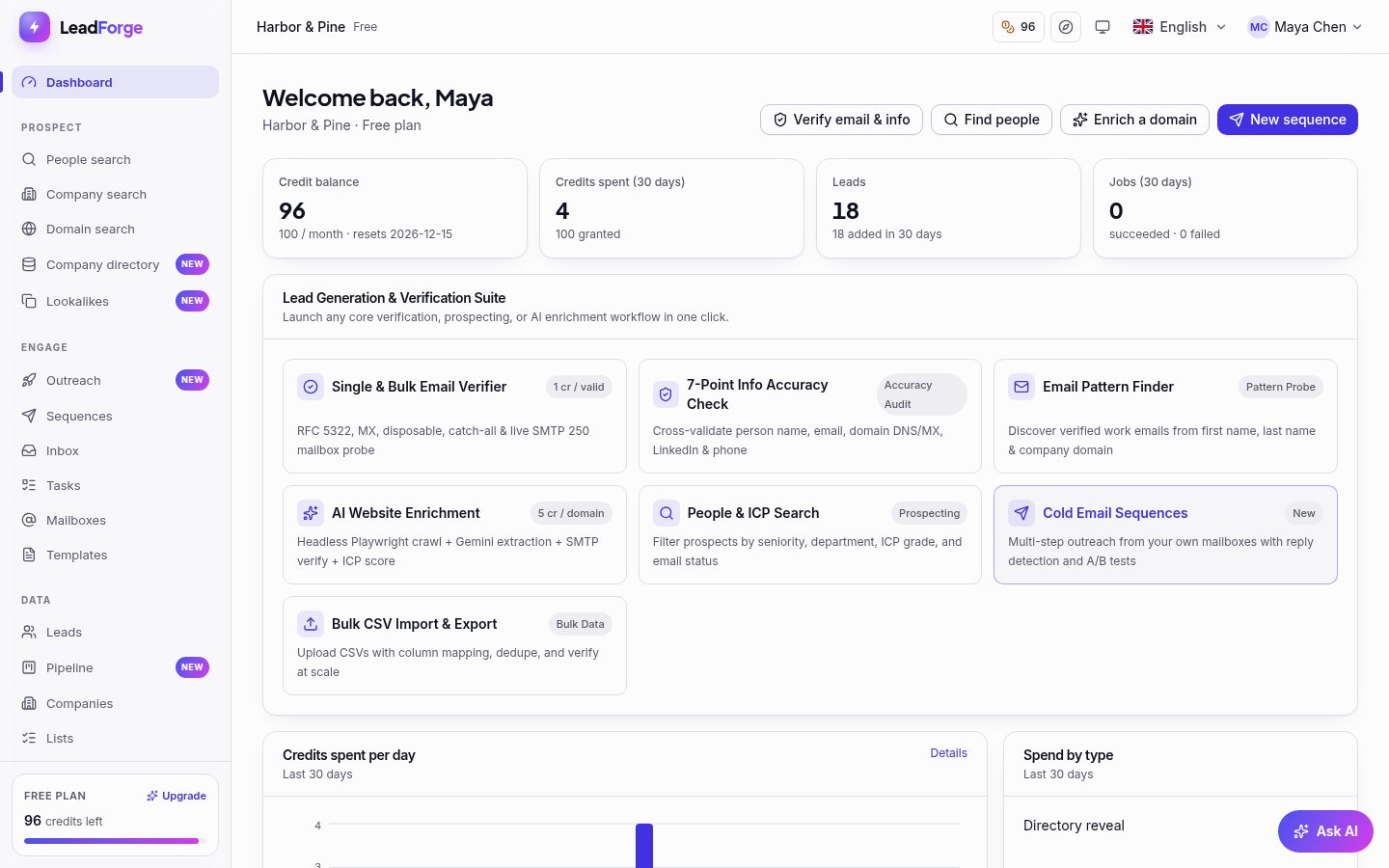
The first time you open the app a short tour points out the menu, your credit balance and the places you will use most. You can skip it at any time.
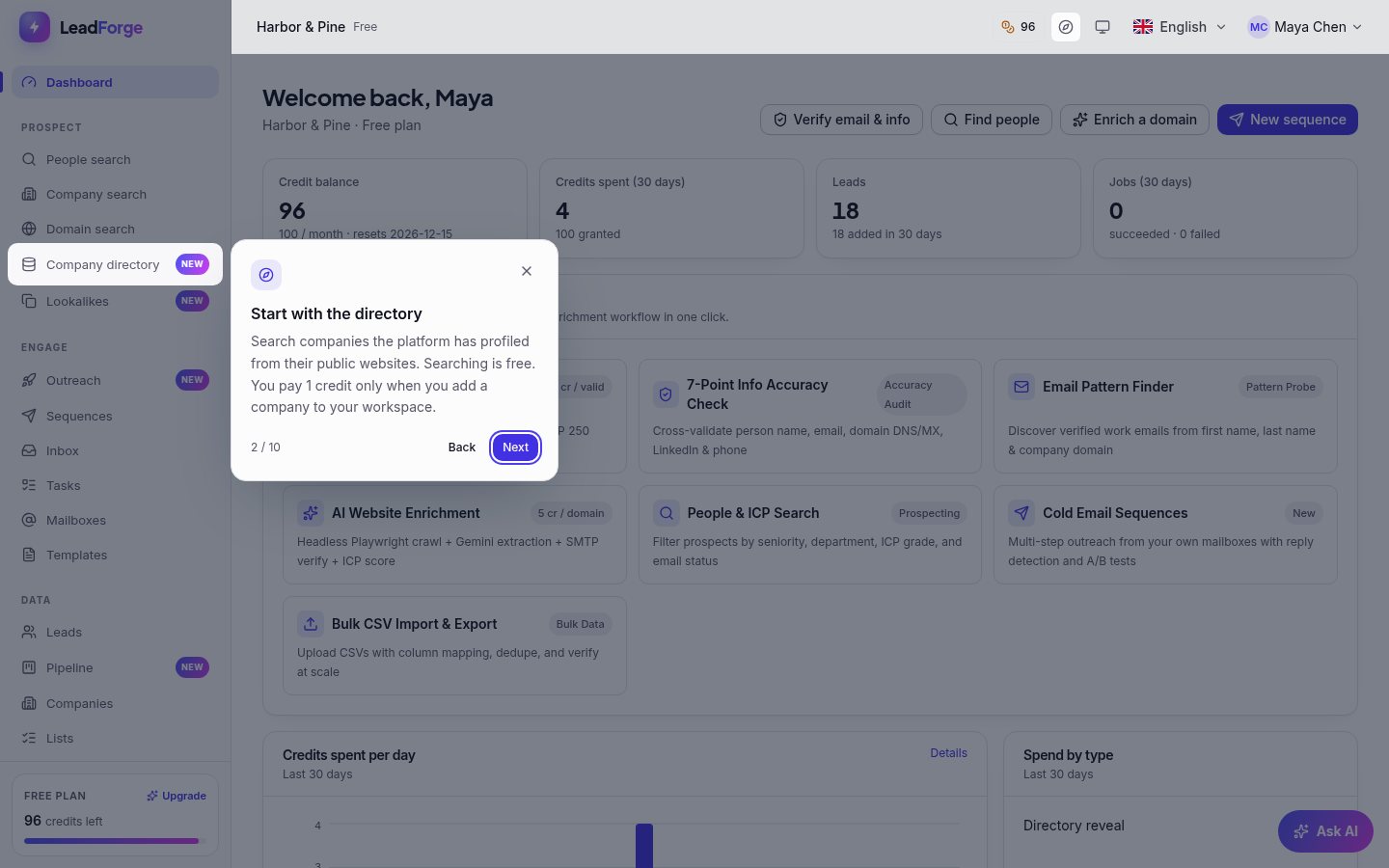
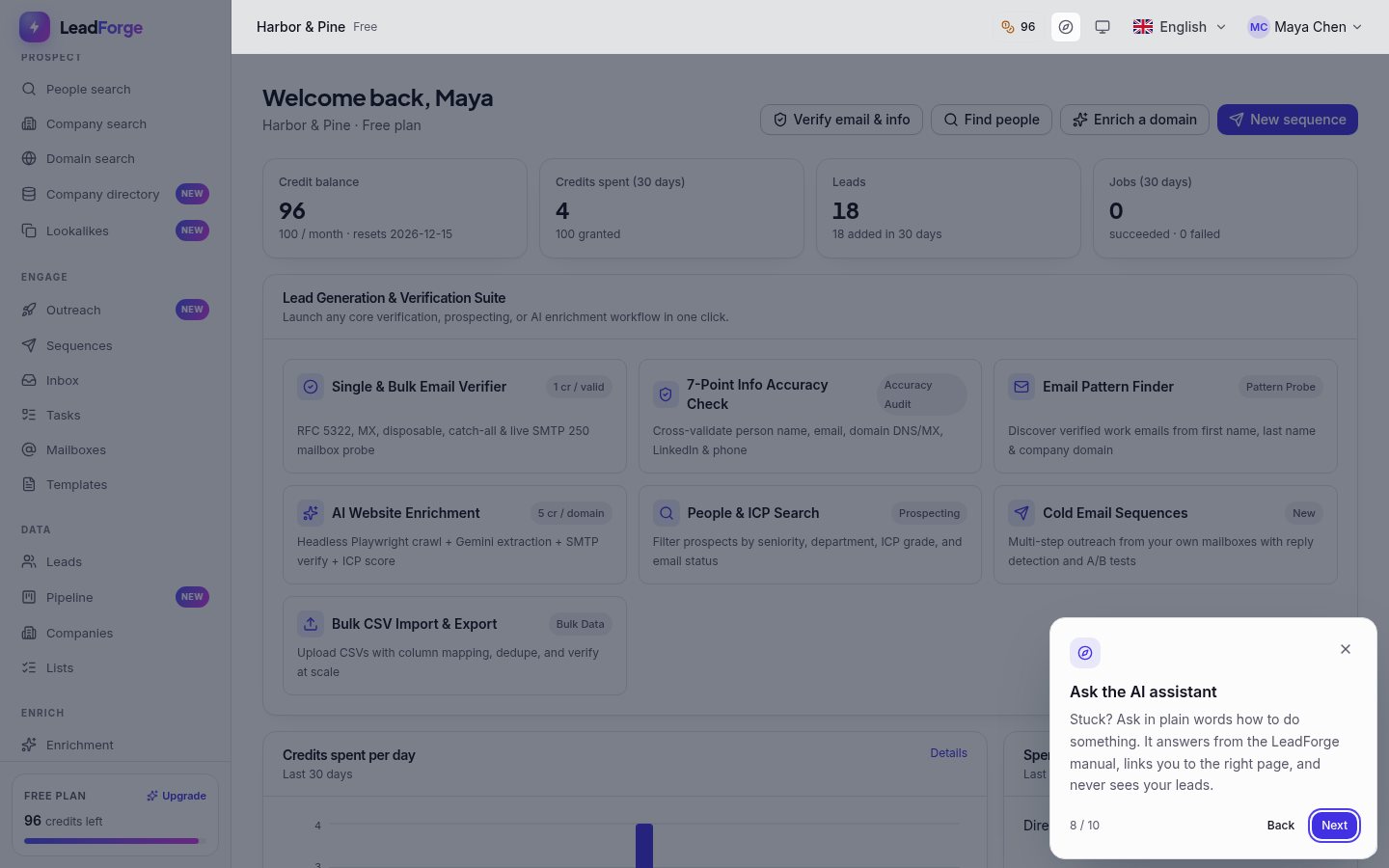
Step 1: the welcome card. Skip it at any time, or press Esc.Each step highlights one part of the screen and says what it is for.One step points at the Ask AI button.
Restart it whenever you like with the Take the tour button in the top bar (the compass icon), or open the app with ?tour=1 on the end of the address.
One step shows the Ask AI button; see the AI assistant guide.
Use Next and Back, or the arrow keys. Esc closes it.
The tour never changes your data. It only highlights parts of the screen.
It starts by itself only once, and only if you allowed functional storage in the cookie preferences, because it needs to remember that you have seen it.
Find your way around
The dashboard: credits, recent activity and shortcuts.
Menu group
What lives there
Prospect
People search, Company search, Company directory, Domain search, Lookalikes
Credits & usage, and Settings (workspace, team, API keys, webhooks, integrations, billing, security, compliance)
Your first ten minutes
1Open Company directory and search for companies that match your market. Searching is free.
2Select a few companies and add them to your workspace (1 credit each).
3Open Enrichment and enrich a domain you care about to find the people on its website.
4Verify an email in Email tools, then add the person to a list.
5Connect a mailbox in Outreach and build a three-step sequence.
2. AI assistant
Ask in plain words how to do something. It answers from this manual and links you to the right page.
What it does
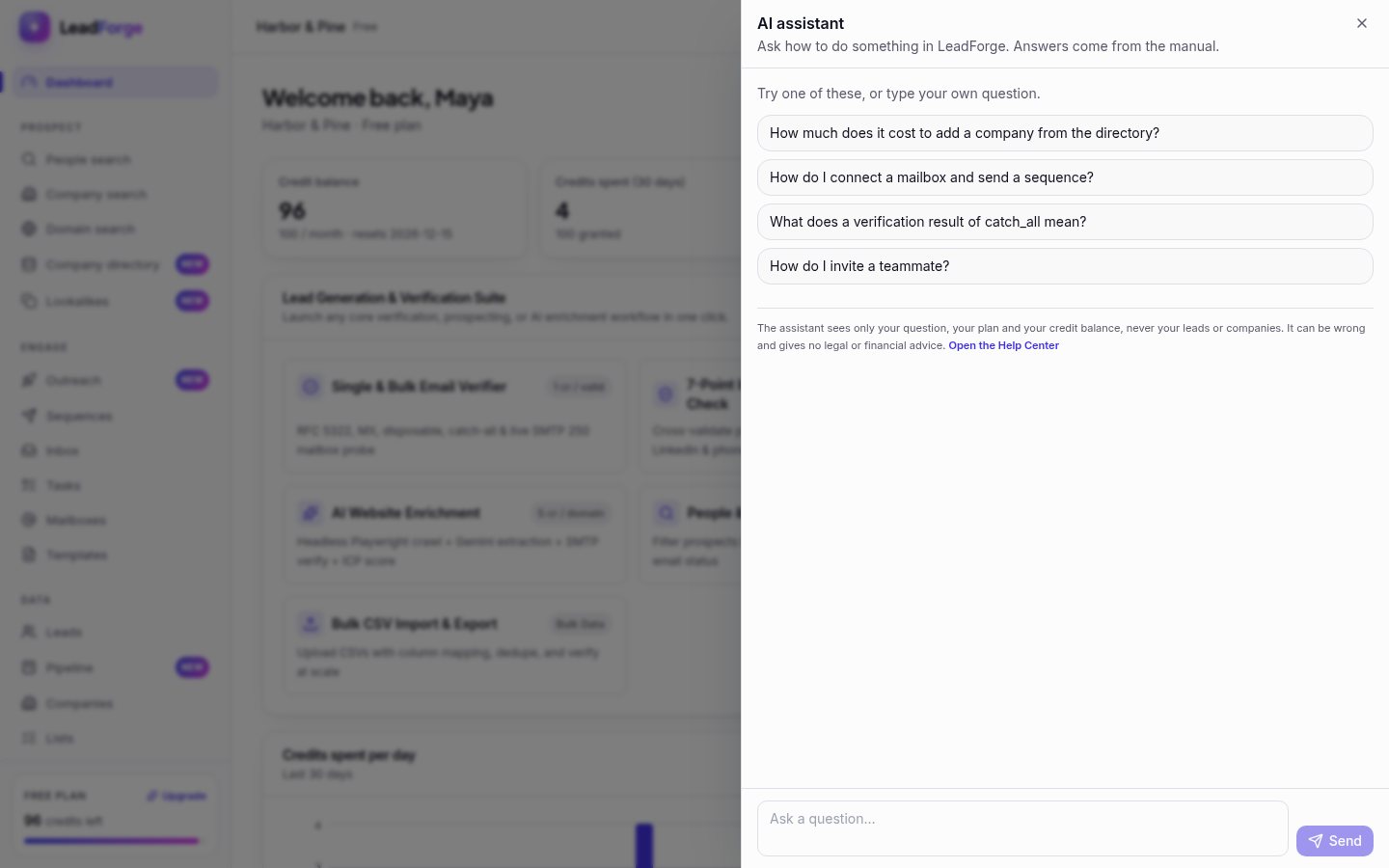
The Ask AI button sits at the bottom right of every page in the app. It opens a side panel where you can ask how to do something, what a result means or what an action costs. Answers come from the Kashifo manual and from the live price list, so they match what the app charges.
The assistant panel. Pick a suggested question or type your own.
It is free and does not use credits.
You can ask up to 40 questions per hour.
Each answer comes with links to the pages it mentions, so you can go straight there.
Ask a question
1Click Ask AI, bottom right.
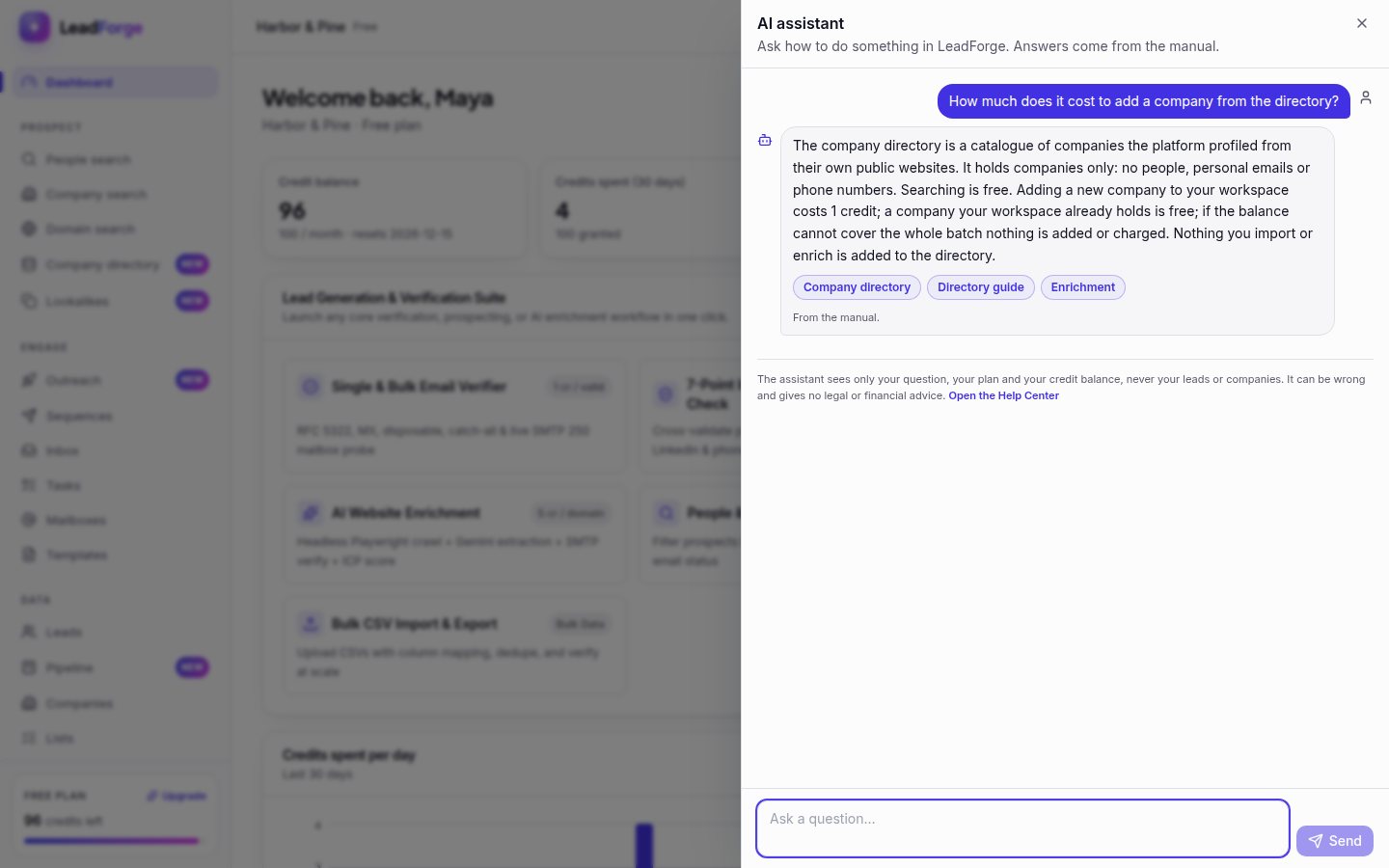
2Type a question, for example "How much does it cost to add a company from the directory?", and press Enter (Shift+Enter adds a line).
3Read the answer and use a link under it to open the page.
An answer with links to the pages it mentions.
What it can and cannot see
It sees your question, your plan name, your role and your credit balance.
It never sees your leads, companies, lists, emails or any other workspace data.
It does not take actions for you. It only explains and links.
It gives no legal or financial advice.
Two kinds of answer
When the AI model is available, the answer is written for your question from the manual and is marked "AI answer from the manual". When the model is unavailable, the assistant still works: it shows the closest part of the manual as written and marks it "From the manual". Either way, check the linked page before you rely on an answer that matters, such as a price or a limit.
3. Company & lead directory
Search the shared common database of companies and verified B2B leads, then reveal and add the ones you want to your workspace.
What the directory is
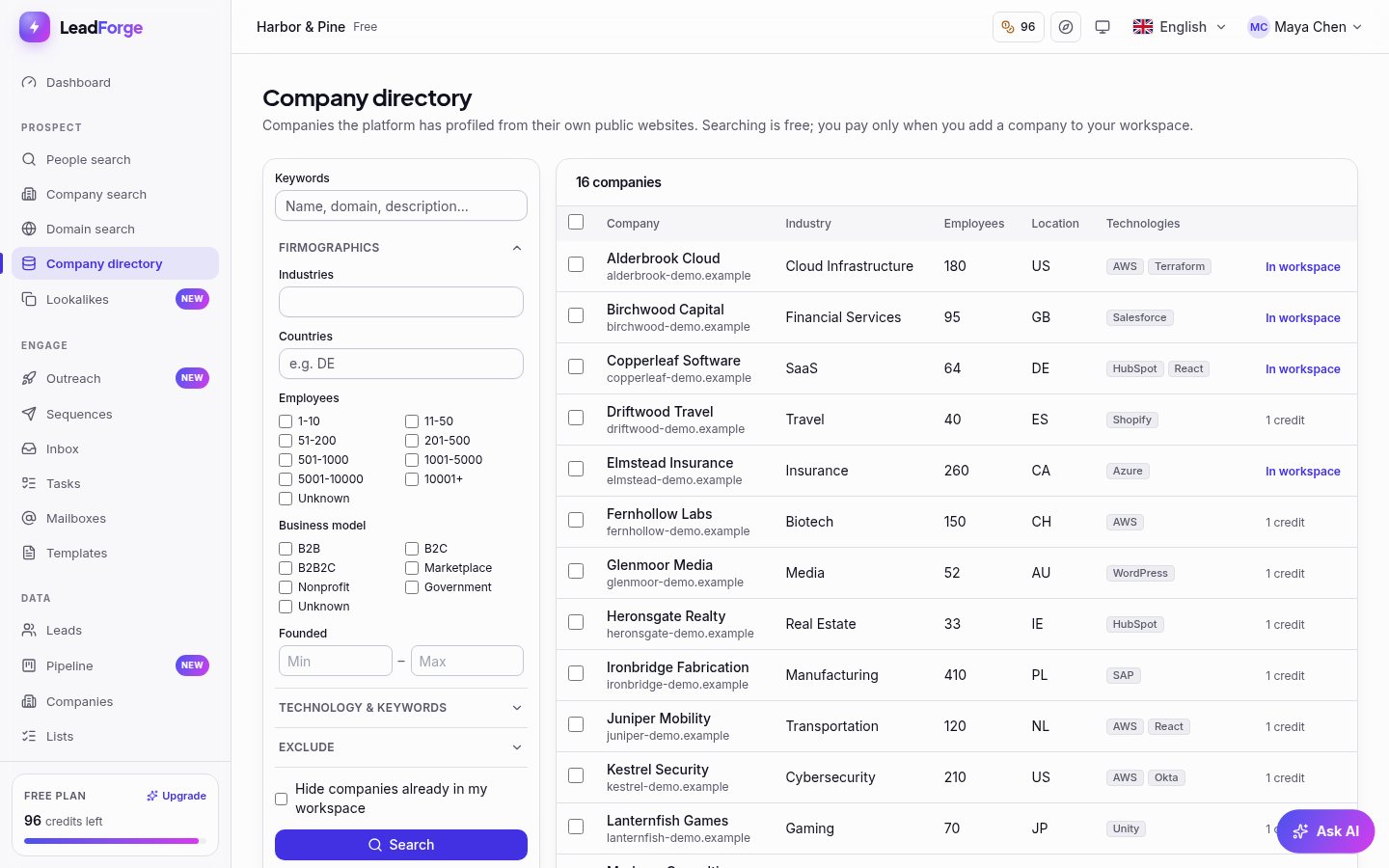
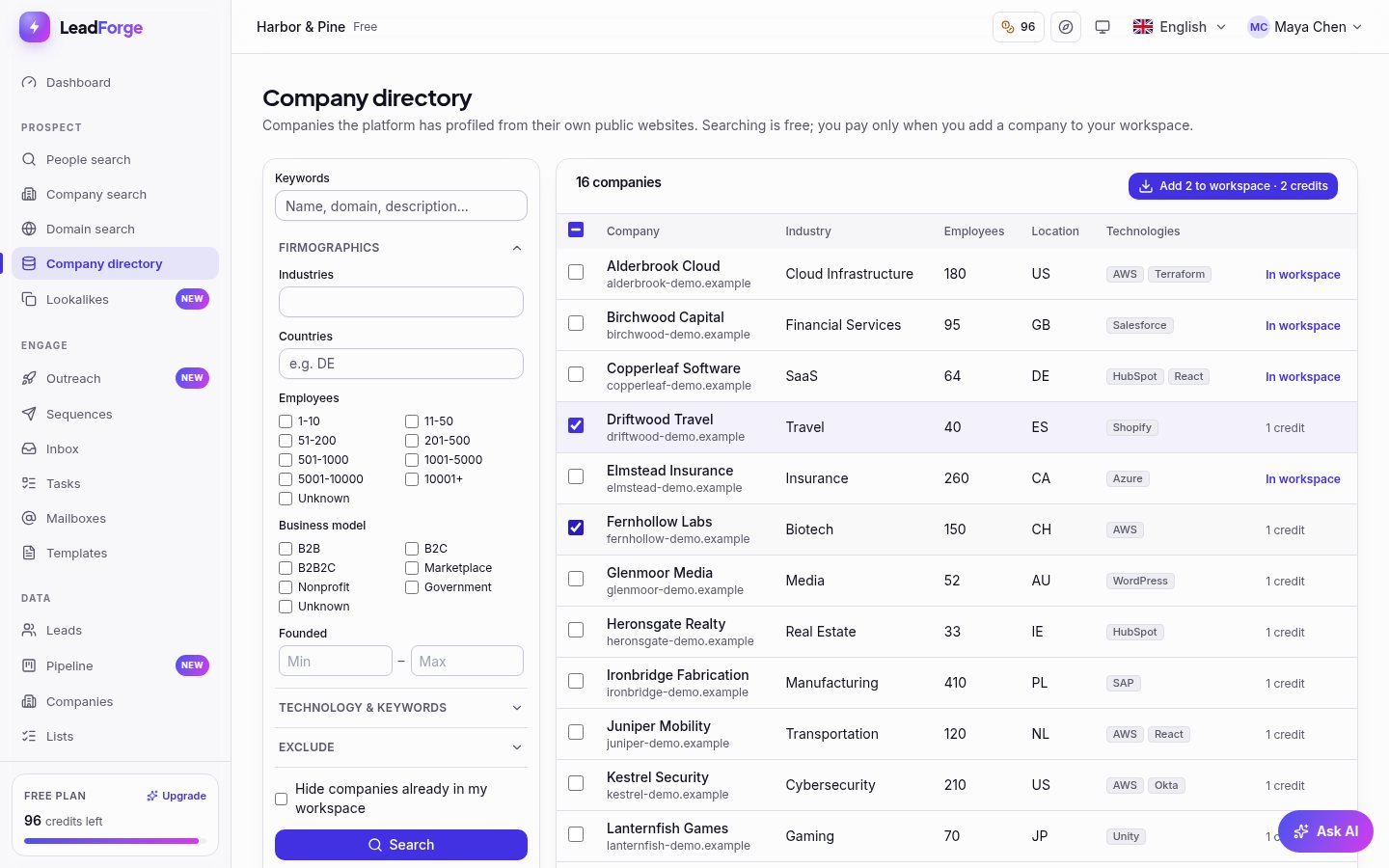
The directory is a shared, continuously updated Common Database in the platform control plane with two tabs: Companies and Common DB Leads (People). Every company profile and verified contact discovered across website crawls, enrichments, email verifications and identified visitor sessions is deduplicated and kept fresh in this central pool.
Switch between Companies and Common DB Leads. Searching and filtering are free.
Search companies and leads
In the Companies tab, filter by keyword, industry, country (two-letter codes such as US or DE), employee band, business model, technologies and founding year.
In the Common DB Leads tab, filter by person name, job title, seniority, department, country, email verification status (valid, catch_all, role_based), company domain or industry.
Technologies and keywords ignore case, so react finds React.
Tick Hide companies or leads already in my workspace to see only net-new prospects.
Reveal and add to your workspace
1Tick the companies or leads you want from the directory results.
2Click Add to workspace (or Reveal lead). The button shows how many records are new and the exact credit cost.
3Added companies appear in Companies and revealed leads appear in Leads (and can be saved straight into one of your Lists).
Selecting rows shows the exact credit cost before you confirm.
Situation
Cost
A new company or lead revealed into your workspace
1 credit
A company or lead your workspace already holds
Free
A record that was suppressed, opted out or unavailable
Free (not added)
Not enough credits for the batch
Nothing is added or charged
If a person or company asks to be removed
Any person or company can request erasure or opt-out. We remove the profile from the Common Directory and add a platform-wide suppression hash so it is never re-collected or contacted.
4. Find people and companies
People search, company search, Ask AI, saved searches, lookalikes and domain search.
People search
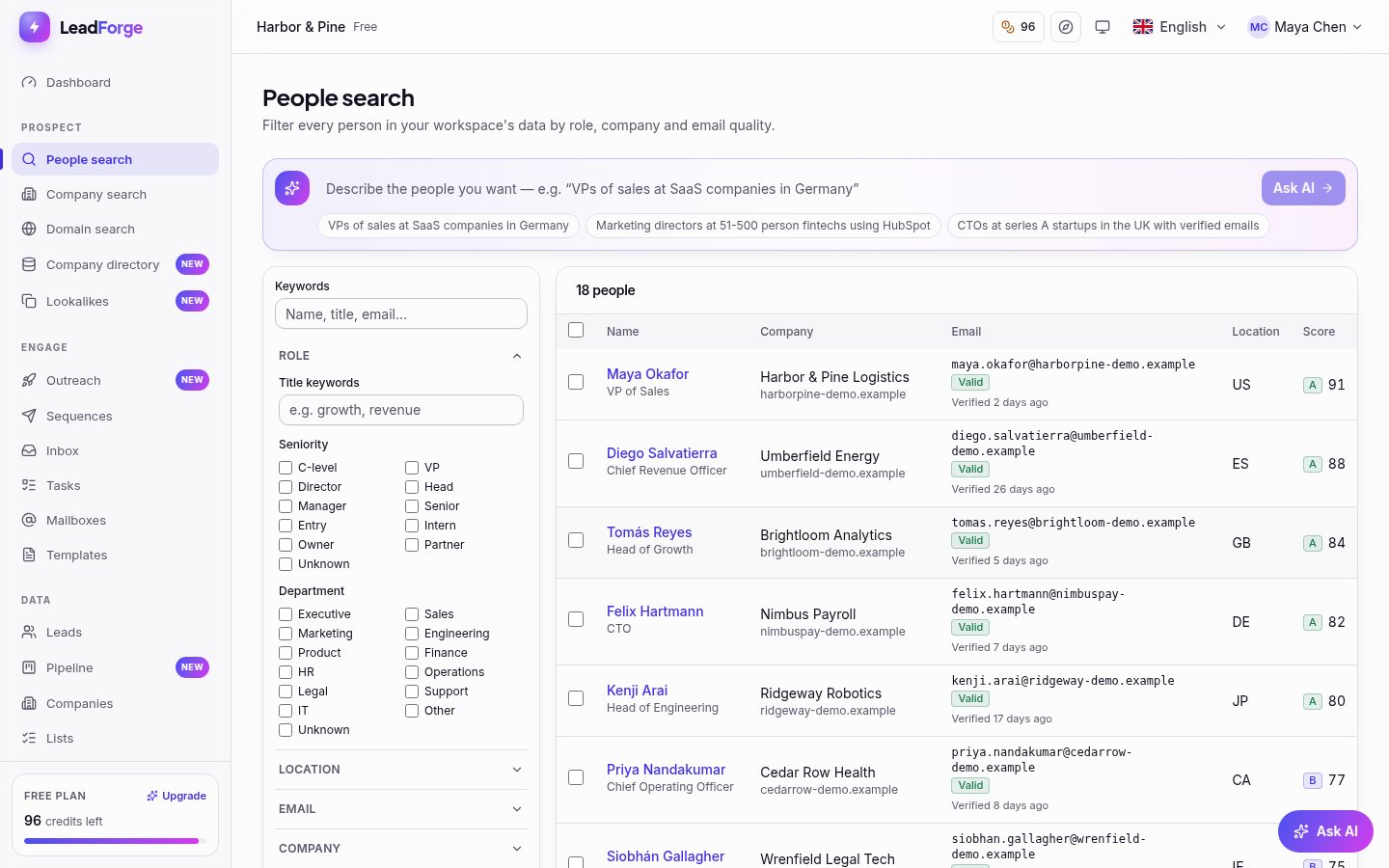
People search covers the people your workspace already holds, whether enriched, imported or added by hand. It is free.
People search with filters on the left.
Filter by seniority, department, title keywords, country, city, email result, company, industry, headcount, technologies, pipeline status, grade, tags and score.
Exclude filters leave out titles, seniority, departments, countries, companies, industries and technologies. People with no value for that field stay in.
Every address shows when it was last verified. After 90 days it turns amber with a re-verify hint.
Do-not-contact people are hidden unless you include them.
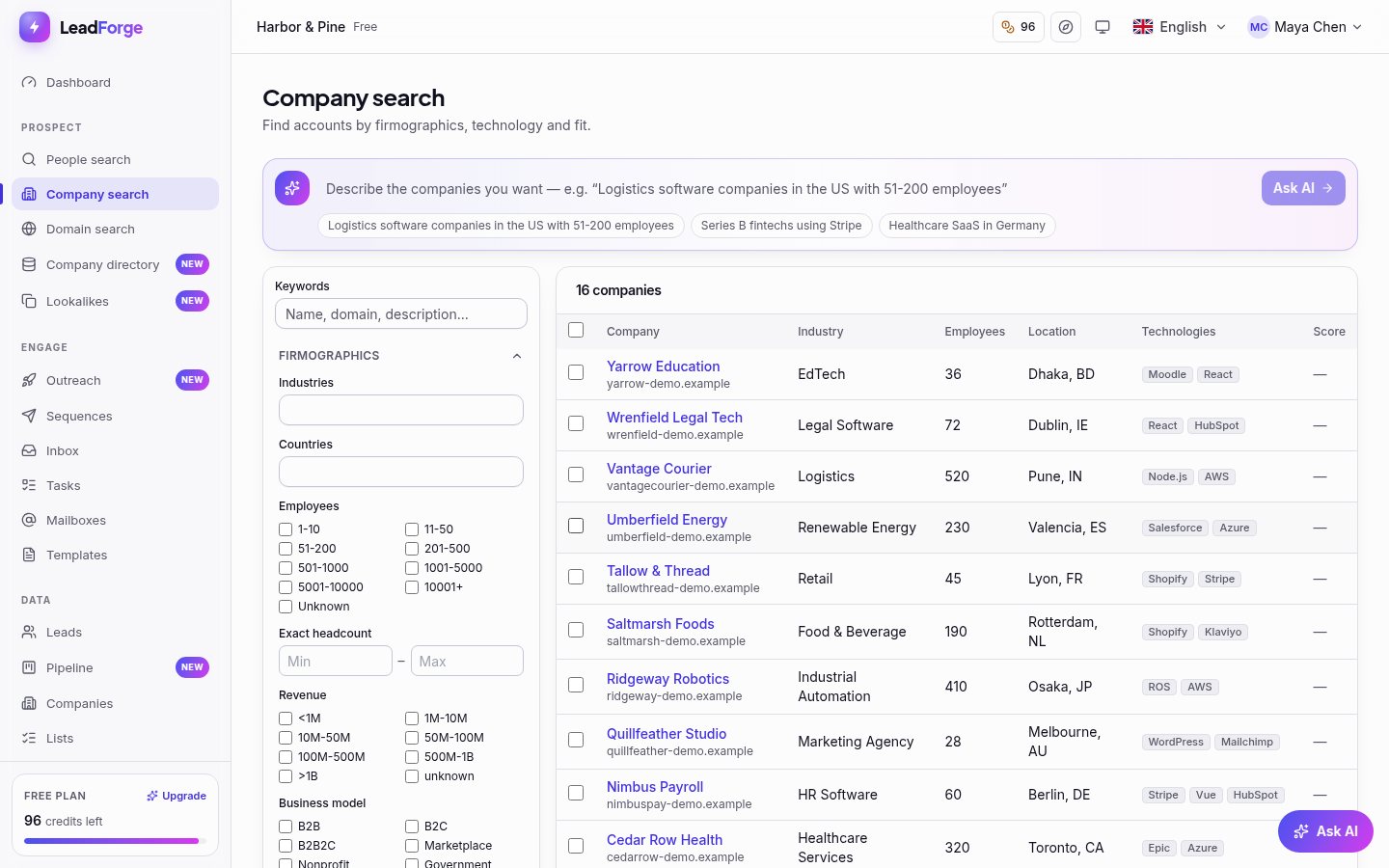
Company search
Company search by industry, size, technology, funding and more.
Company search works the same way on accounts: industry, country, headcount and revenue bands, business model, technologies, keywords, funding, founding year and whether the company has any people yet.
Ask AI
Above the filters, describe who you want in plain words, for example "VPs of sales at logistics companies in Germany". The AI fills in the filters and shows you what it understood so you can check them before searching. It never searches without showing its filters first.
Saved searches and alerts
Save a people search with a name. You can share it with the workspace or keep it private, pin it, and (on Starter and above) get an email when new people match.
Plan
Saved searches
Free
3
Starter
25
Growth and above
Unlimited
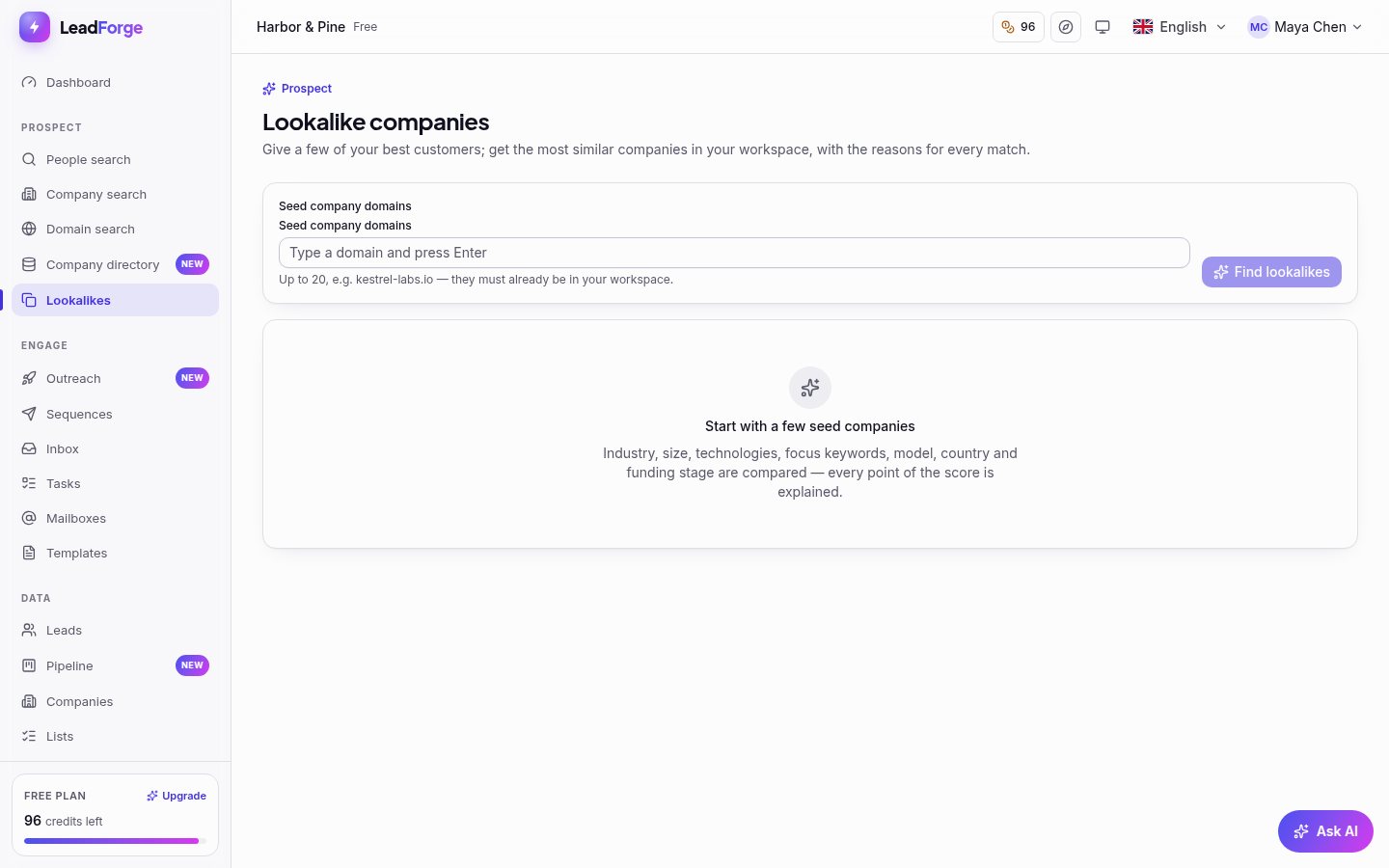
Lookalikes
Pick a few companies you already like.
Give it up to 20 companies you already have and it ranks the other companies in your workspace by similarity, showing the reasons for each score (same industry, shared technologies, similar size and so on).
Domain search
Everyone your workspace knows at a domain, with its email pattern.
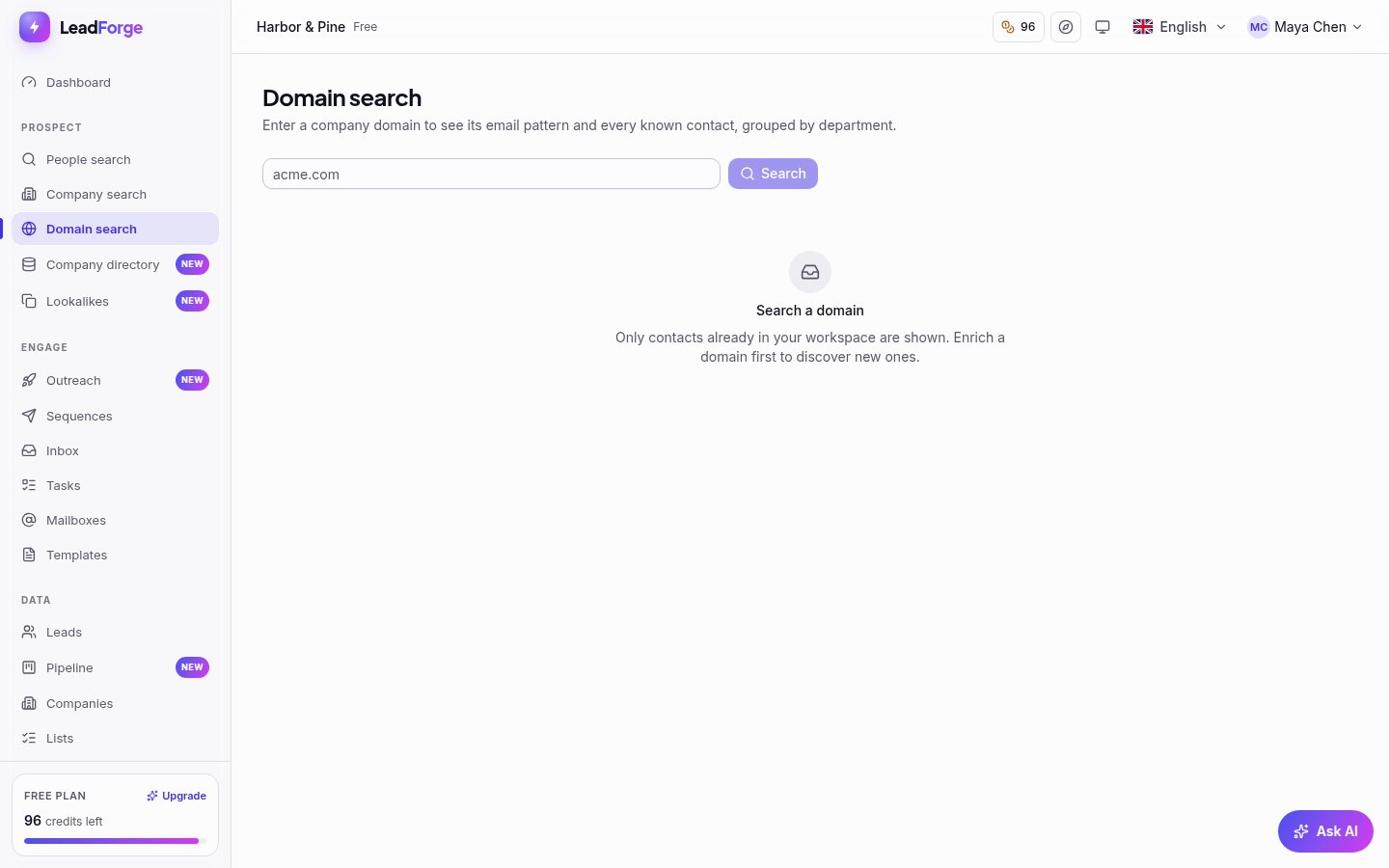
Type a domain to see the people your workspace holds there, grouped by department, with the email pattern the company uses and our confidence in it. It reads your data; it does not crawl the site.
5. Enrich and import
Turn a website into a company profile and a list of people, or bring your own CSV.
Enrich a company
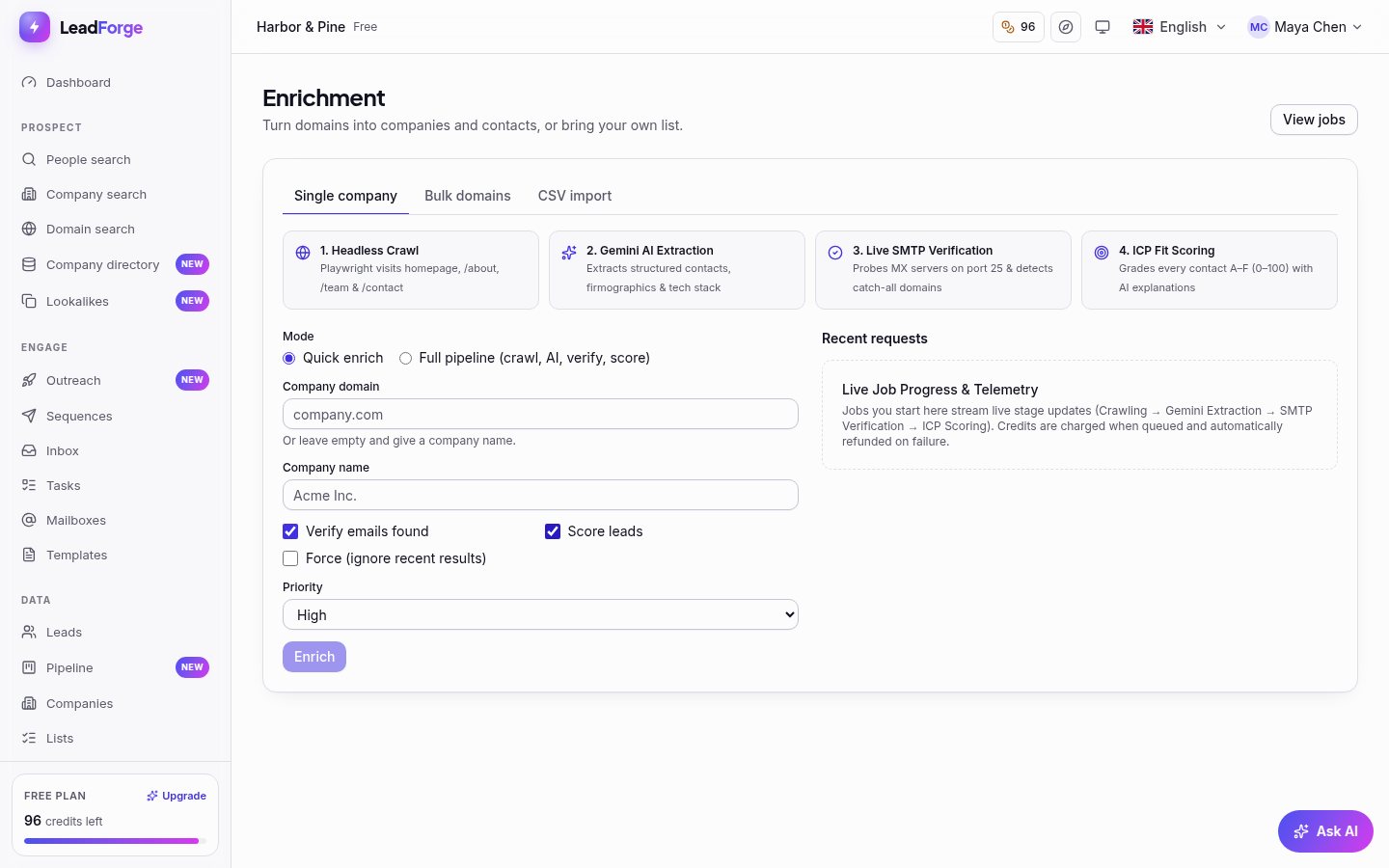
Enrichment reads a company's public website, uses AI to pull out its details and the people named on it, keeps only email addresses that really appear on the site, checks each address with the recipient's mail server (no email is sent) and scores each person against your ideal customer.
Enter any domain, website address or email at that company.
1Enter the domain. Any form works: acme.com, https://www.acme.com/about or jane@acme.com.
2Choose whether to verify emails and score leads (both on by default). Optionally describe your ideal customer in plain English for AI scoring.
3Start. A progress bar shows the job; the company and its people appear in your data when it finishes.
Pay per result (recommended)
Quick enrich
Price
1 credit to read the site, plus 1 if people were found, plus 2 per email actually checked
5 credits flat
Charged
Only when results are saved. A failed run costs nothing
At the start, refunded if the job fails or finds no people
Extras
Plain-English ideal customer, optional guessing of missing emails
None
Many companies at once
Paste a list of domains to enrich them in bulk. Per request you can send up to 10 domains on Free, 100 on Starter and 500 on Growth and above. Bad or opted-out domains are reported as failed without stopping the rest. Each queued domain costs 5 credits.
Watch and cancel jobs
The Jobs page lists every job with its status: queued, running, retrying, succeeded, failed, cancelled or deduplicated. You can cancel a job that has not started and get its credits back. A running job is left to finish so no half-written company is left behind. If a colleague started the same enrichment in the last hour you get their job back and pay nothing.
Import a CSV
1Prepare a CSV with a header row. Useful columns: email, first_name, last_name, full_name, title, company_name, company_domain, linkedin_url, country.
2Upload it on the Leads page.
3Choose whether to enrich the companies and verify emails.
Importing without enrichment is free.
Enrichment costs 5 credits per distinct company domain, not per row: 400 people at 20 companies cost 100 credits.
Rows without an email, name or LinkedIn URL, and opted-out addresses, are skipped and reported.
Rows per upload: Free 100, Starter 2,000, Growth and above 5,000.
6. Verify and find emails
Run 7-stage in-house verification with spam-trap and toxicity diagnostics, find missing emails and check data accuracy.
Verify an address (7-stage in-house engine)
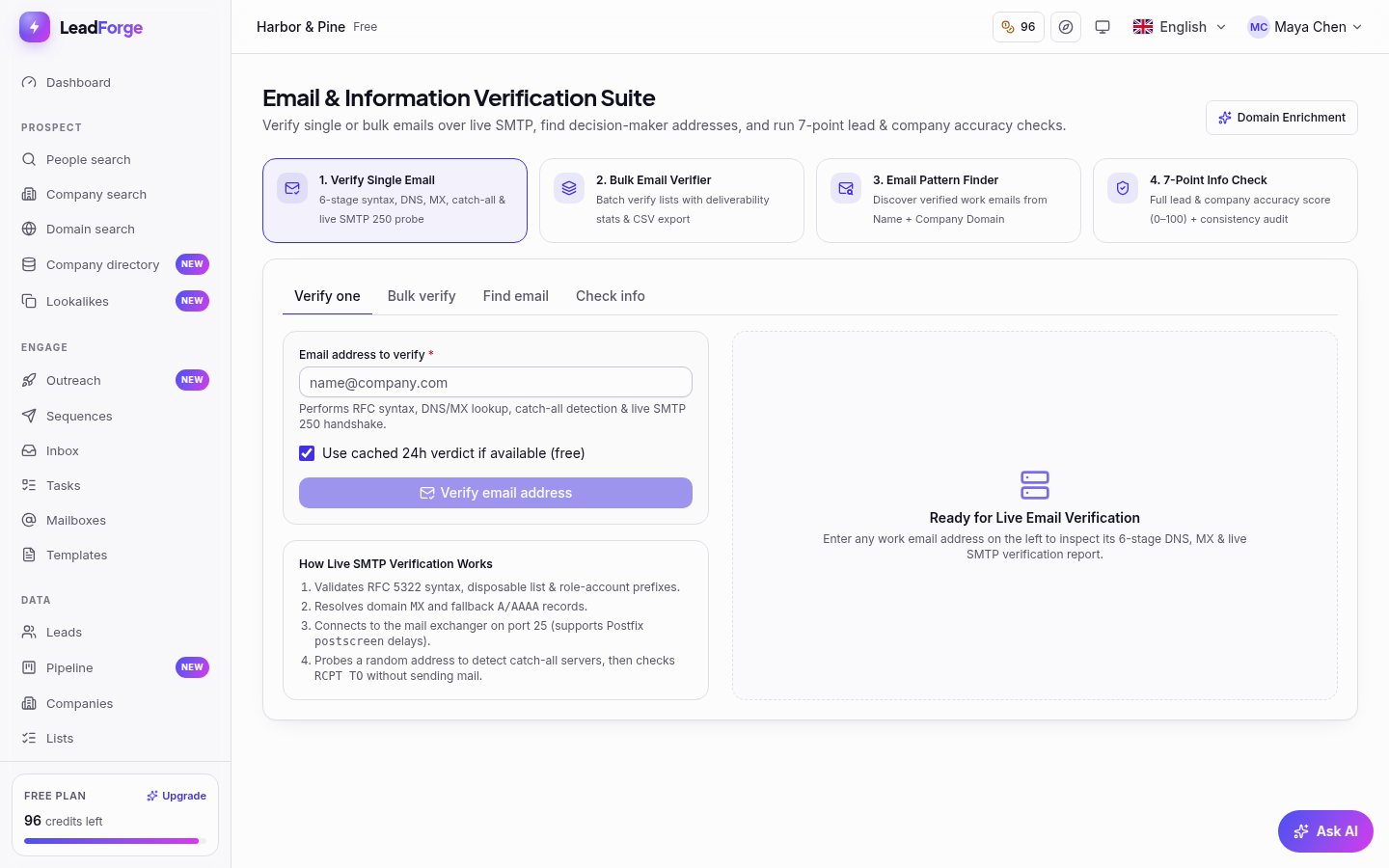
Email tools: 7-stage verification, toxicity diagnostics, email finder and accuracy checker.
Verification runs 100% in-house across seven diagnostic stages: RFC syntax check, DNS/MX resolution, disposable provider check, role-account classification, catch-all server probe, live SMTP RCPT handshake (no email is sent) and Stage 7 In-House Toxicity & Spam-Trap scoring (0 to 100).
Result
Meaning
Contact it?
valid
The mail server confirmed the mailbox exists and toxicity is low
Yes
catch_all
The server accepts every address, so this one cannot be proven
With care
role_based
A shared mailbox such as sales@ or info@
Yes, but it reaches a team
risky
Signs of a problem such as a full mailbox or elevated toxicity score
Avoid in big sends
unknown
No conclusive answer. Try again later
Not yet
invalid
The mailbox does not exist or failed syntax/MX checks
No
disposable
A throwaway email service or high-toxicity spam-trap pattern
No
Stage 7 Toxicity & Spam-Trap Check flags spam-trap honey-pot patterns, abuse/compliance mailboxes (abuse@, postmaster@, legal@, privacy@, dmca@), bot-generated local parts and throwaway domains.
1 credit per fresh, conclusive check.
Free if the address was checked in the last 24 hours, or the answer is unknown.
Bulk: up to 25 (Free), 50 (Starter) or 100 (Growth and above) per request.
Find an email
Enter a first name, last name and company domain. We try the most likely formats and return the first one the mail server confirms.
Found: 1 credit.
Not found: nothing is charged and you get no address. We never hand you a guess.
On a catch-all domain we never report an address as found, because it cannot be proven.
Check information accuracy
Paste a name, title, email, phone, LinkedIn URL or company details to see whether they are plausible, consistent and contactable. On a saved lead you also get a trust score, a completeness score, a Contactable badge and recommended fixes. The basic checks are free; tick the SMTP option for a live mailbox check (1 credit when fresh and conclusive).
Bounce guarantee
If an address we verified as valid hard-bounces within 30 days of that verification, report it from the Credits page and the credit comes back after we re-check the mailbox. Each verification is refunded once.
7. Leads, lists and pipeline
Work your people and companies: edit, score, group, move through stages and export.
The leads table
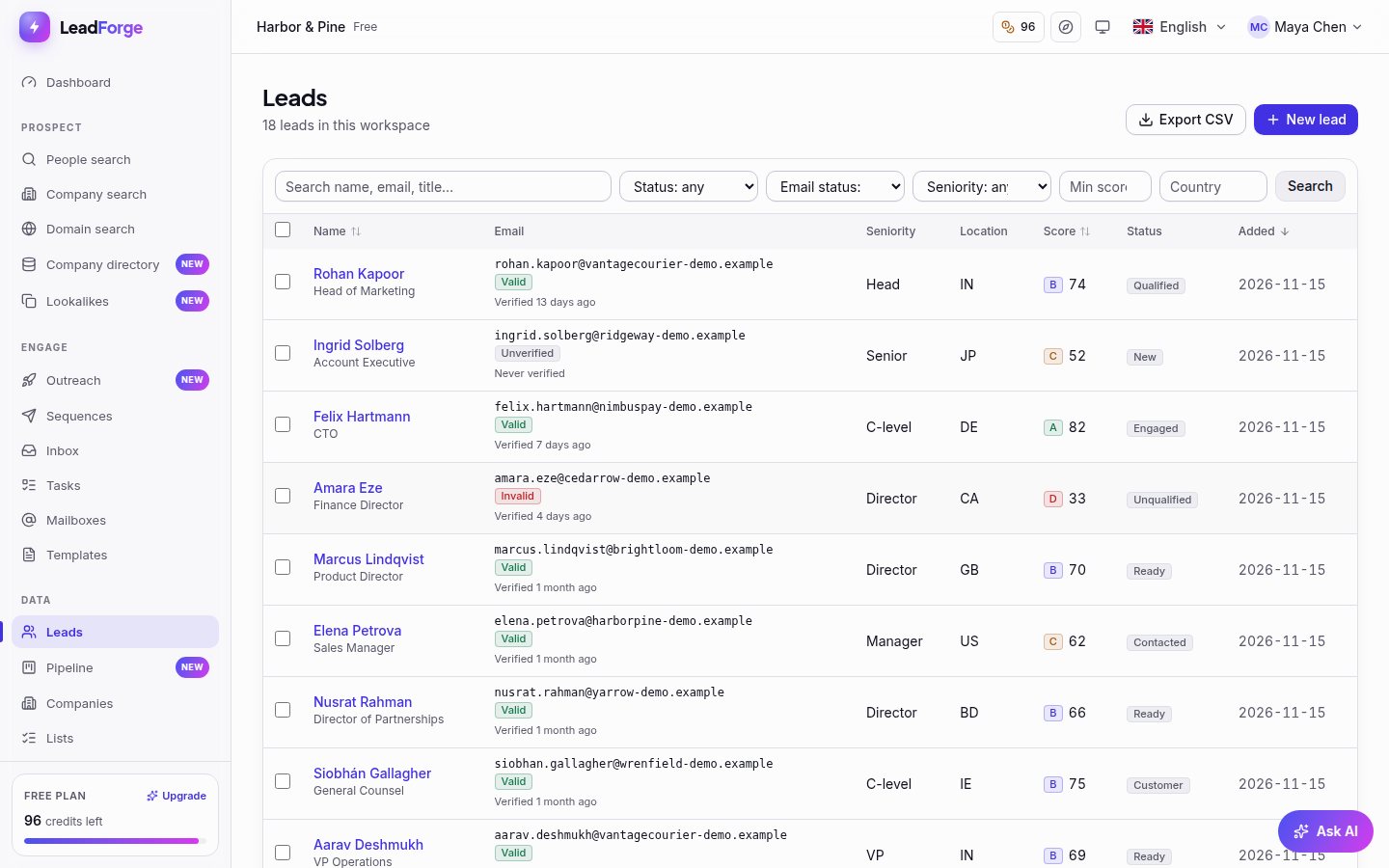
Every person with score, grade, email status and pipeline status.
Edit fields, tags and notes. Changing an email resets its verification to unverified.
Set a pipeline status: new, ready, contacted, engaged, qualified, customer, unqualified, do not contact or archived.
Mark Do not contact and the person disappears from searches, exports and sequences.
Re-score instantly and free, or verify the email.
Delete (owners and admins).
Companies
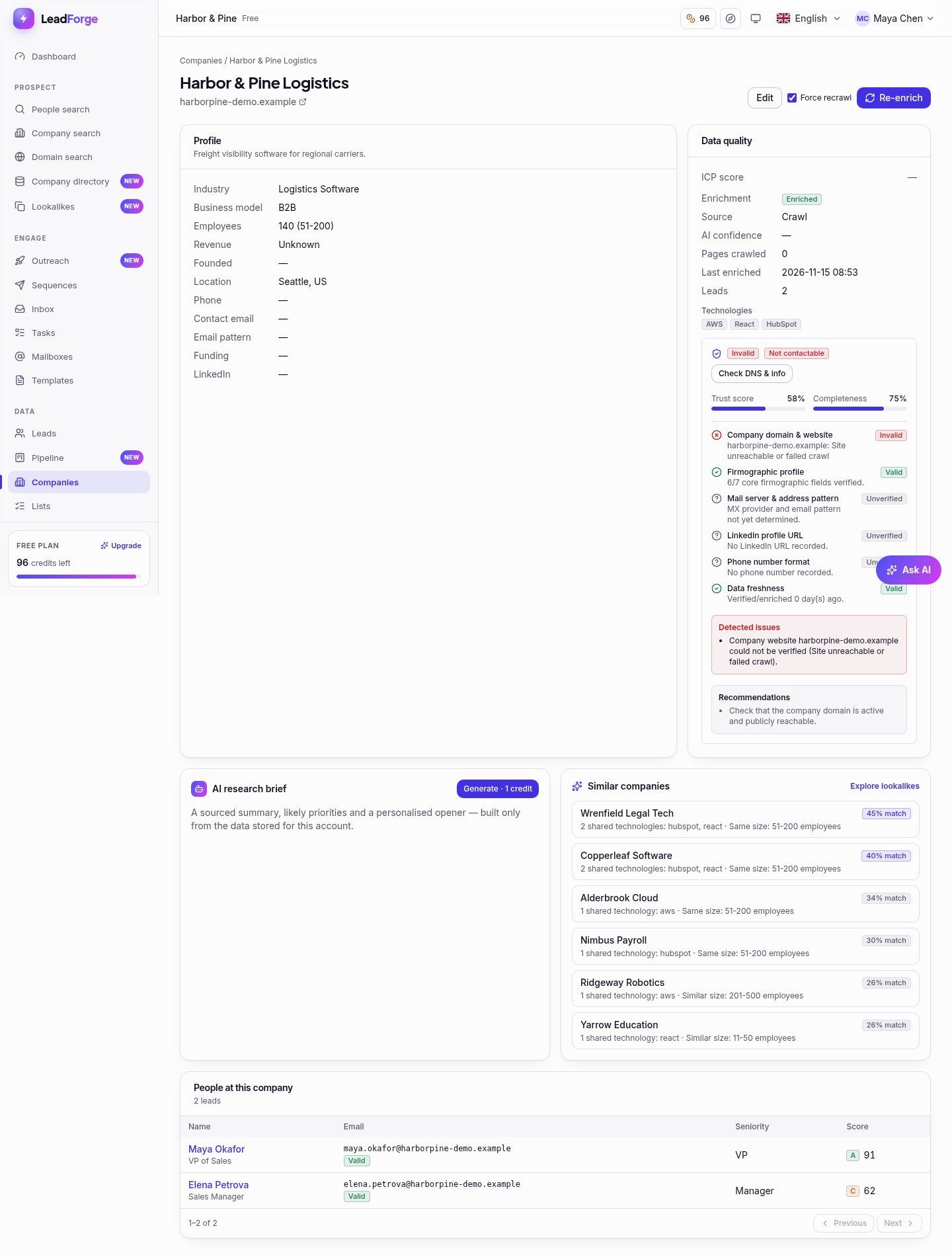
A company page: profile, data-quality checks, the AI brief, similar companies and the people found. The demo domain does not exist, so its live DNS check shows as failed.
A company page shows the profile, its people, the email pattern and an AI account brief. The brief is a short summary, key facts with their sources, likely priorities and an opening line. It costs 1 credit and is charged only when it is written.
Scores and grades
Grade
Score
A
80 and above
B
65 to 79
C
45 to 64
D
Below 45
A score combines fixed rules (seniority, company size, industry, email quality) with an optional AI assessment when you describe your ideal customer. It lists the reasons and any disqualifiers. Scores refresh daily for people whose score is older than 30 days.
Lists
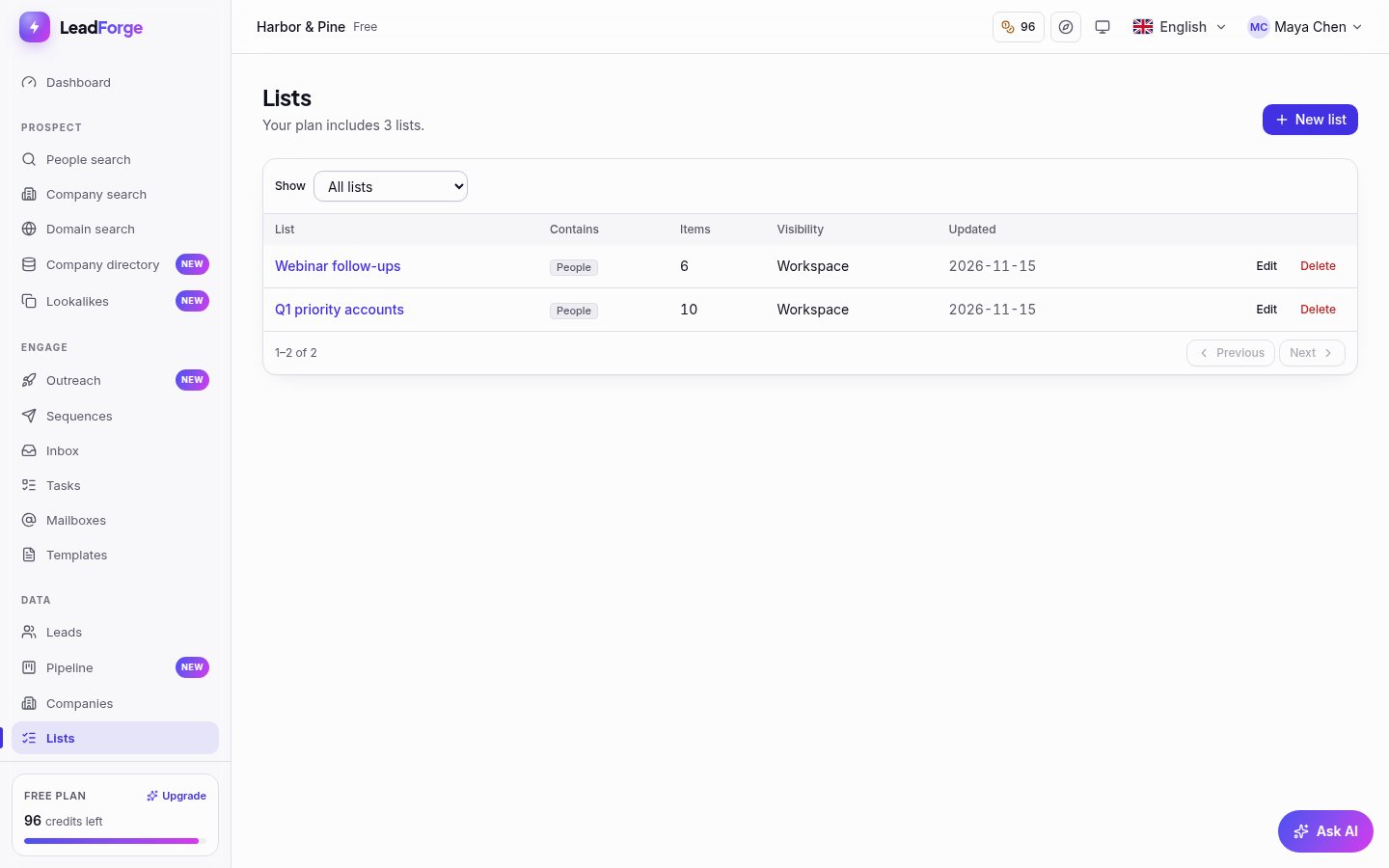
People lists and company lists.
Create people lists or company lists with a name, description and colour. They are shared with the workspace by default.
Add or remove up to 1,000 items at a time. Deleting a list keeps the people and companies in it.
Download a people list as CSV: no credits, but rows count toward your monthly export allowance.
Lists per plan: Free 3, Starter 25, Growth and above unlimited.
Pipeline board
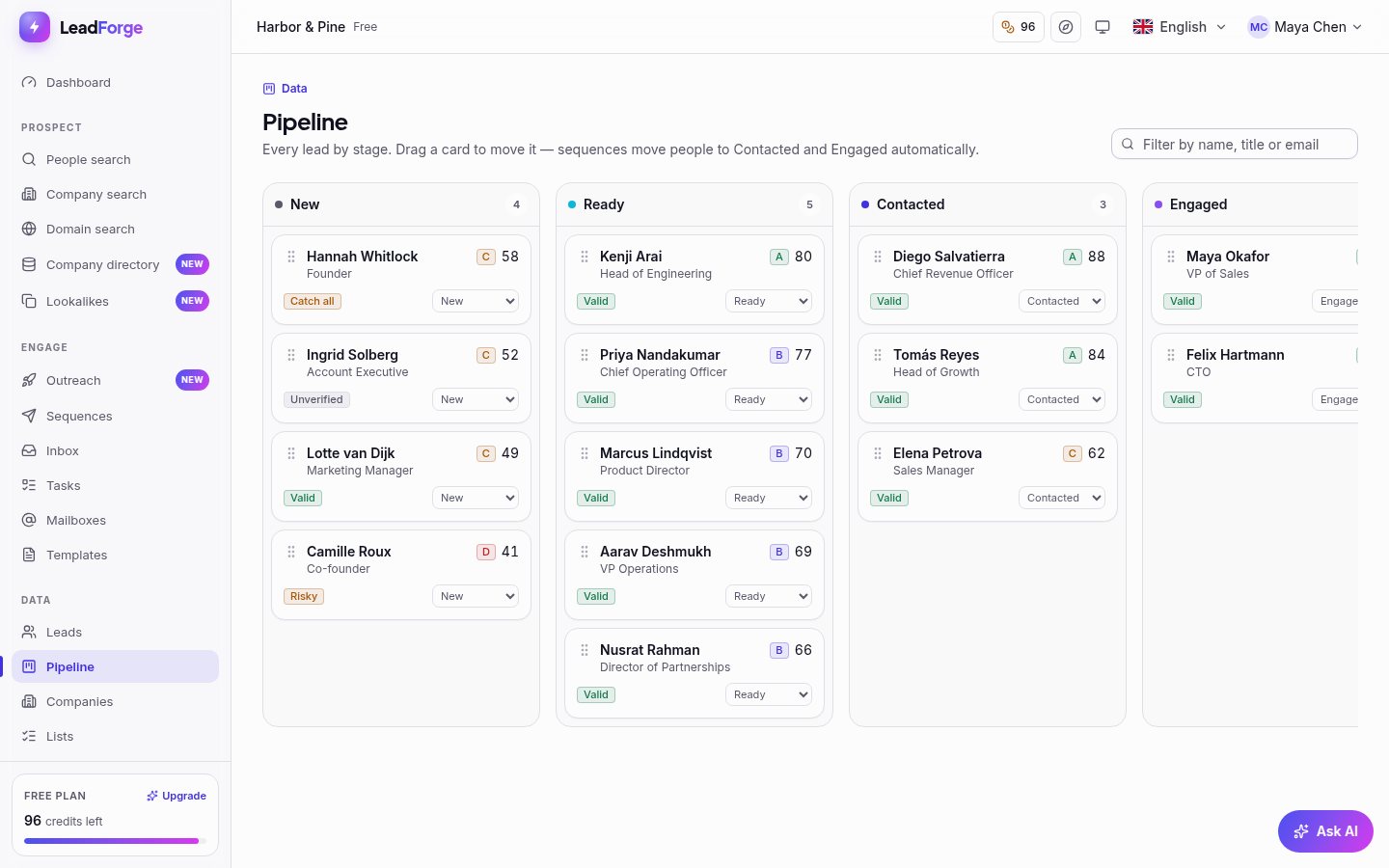
Drag a card to change a person's status.
The board shows your people by status. Drag a card to another column to change the status.
Export
Exporting leads costs 1 credit per row you receive, charged before the download starts. People who opted out are removed first, so you never pay for them.
By default only contactable addresses are included (valid, catch-all, role-based). Untick Contactable only to include all.
Do-not-contact people and anyone who opted out platform-wide are never exported.
Up to 10,000 rows per file, within your plan's monthly export allowance.
8. Cold email outreach
Connect a mailbox, build a sequence, enrol people and work the replies.
How it fits together
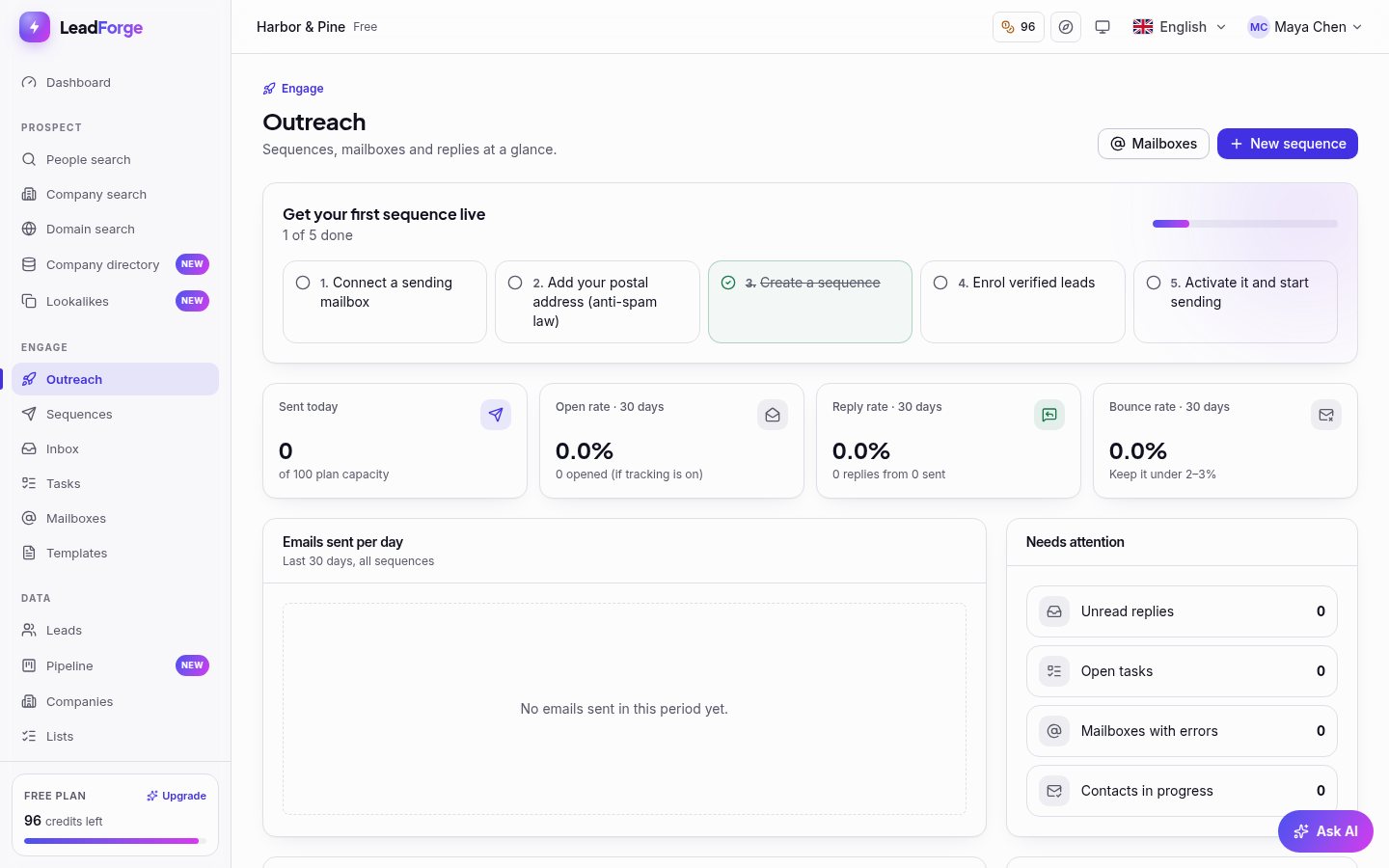
The outreach overview.
You send multi-step email sequences to your leads from your own mailboxes, without exporting them to another tool. A reply from a person stops the sequence for that person and lands in your inbox.
1. Connect a mailbox and track warmup health
Mailboxes connect over SMTP and IMAP with built-in warmup health scoring.
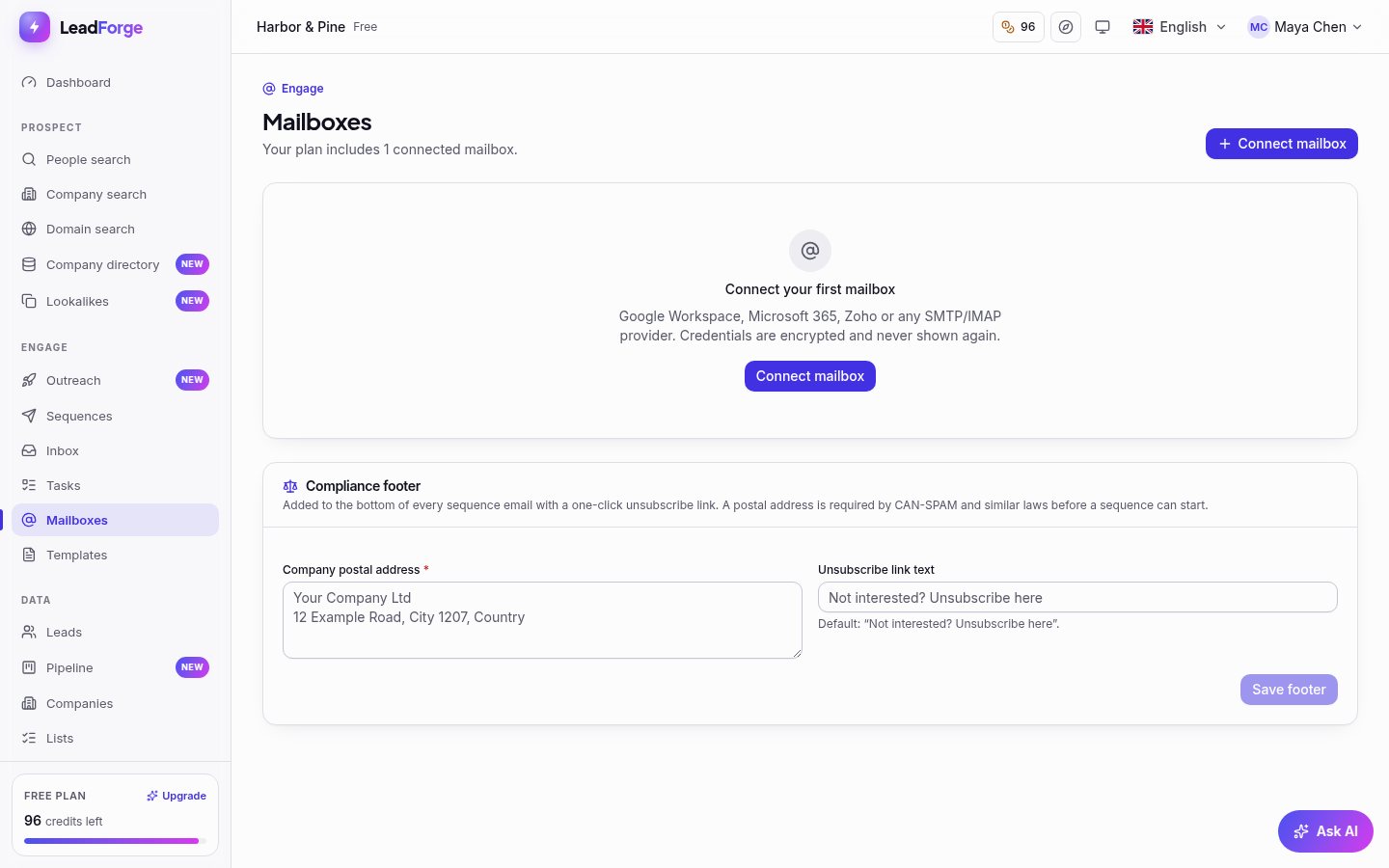
1Open Outreach, then Mailboxes, and add a mailbox with its SMTP and IMAP settings.
2Gmail and Microsoft 365 need an app password.
3IMAP lets us see replies and bounces. Without it you can send but not receive.
4Each mailbox displays an In-House Warmup & Deliverability Health bar (0 to 100) with a 30-day progressive ramp-up schedule and bounce-rate guardrails that automatically pause sending if bounce thresholds are exceeded.
2. Set the compliance footer
Admins enter the postal address that is added to every email together with a one-click unsubscribe link. Anyone who unsubscribes is suppressed from your sequences.
3. Build a sequence
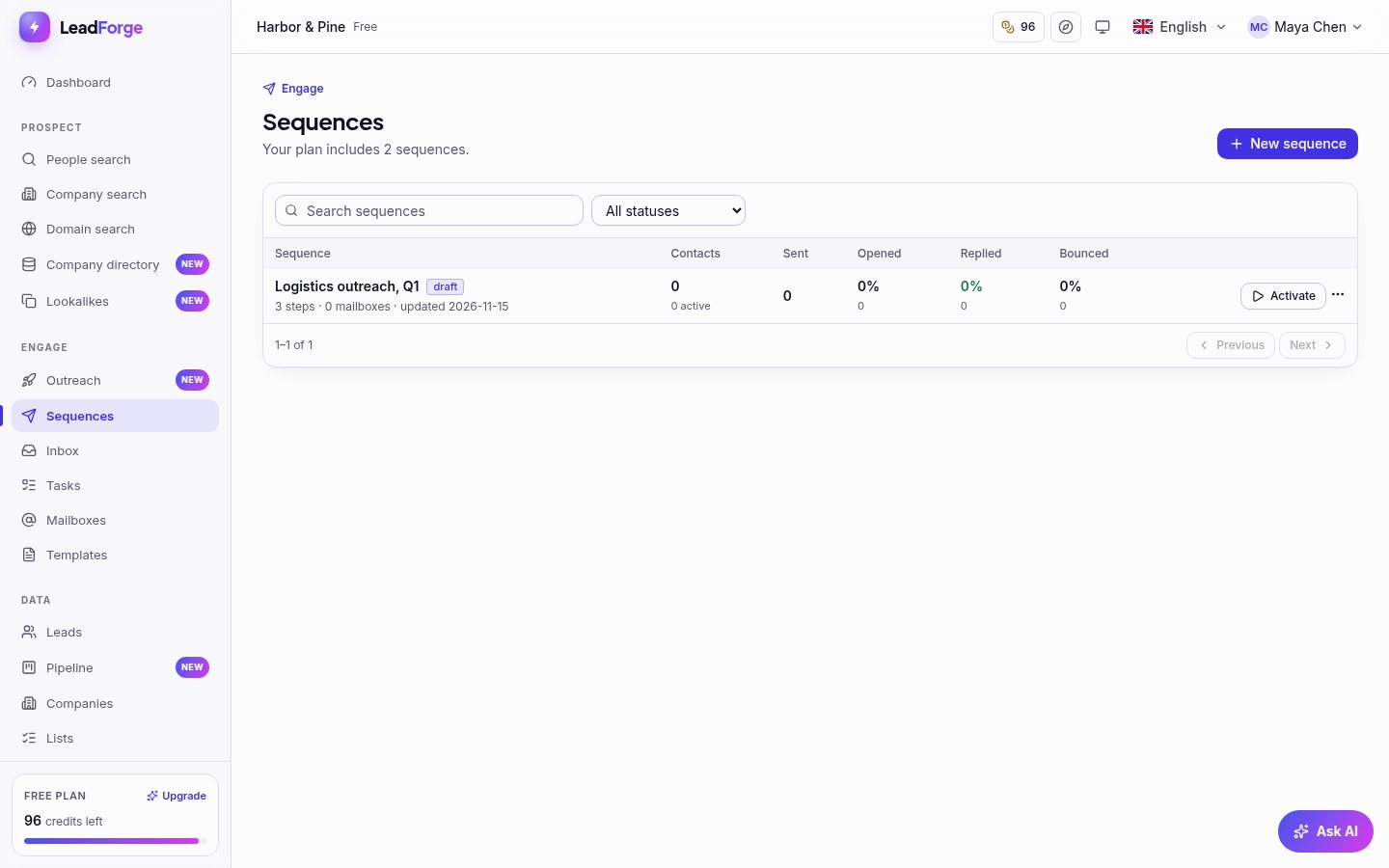
Sequences.The editor: delays, variants and manual steps.
Start from the three-step template, from an AI draft or from blank.
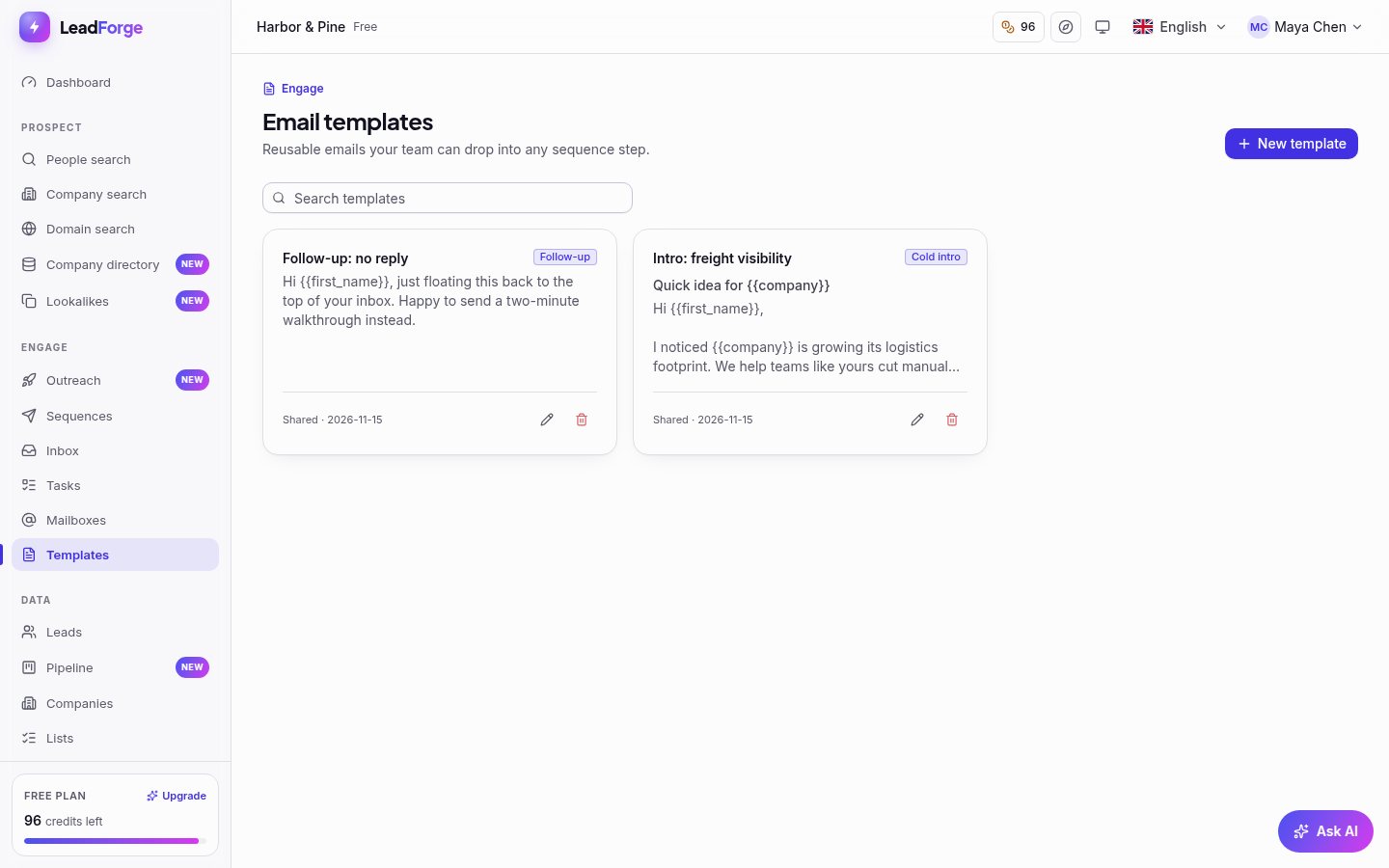
Email steps can have up to five A/B variants, personalised with variables such as the first name and company.
Manual steps (a call, a LinkedIn visit, a task) land in Tasks for you to do.
Set the send window, time zone and stop rules. By default a reply stops the sequence for that person.
Reusable templates.
4. Enrol and activate
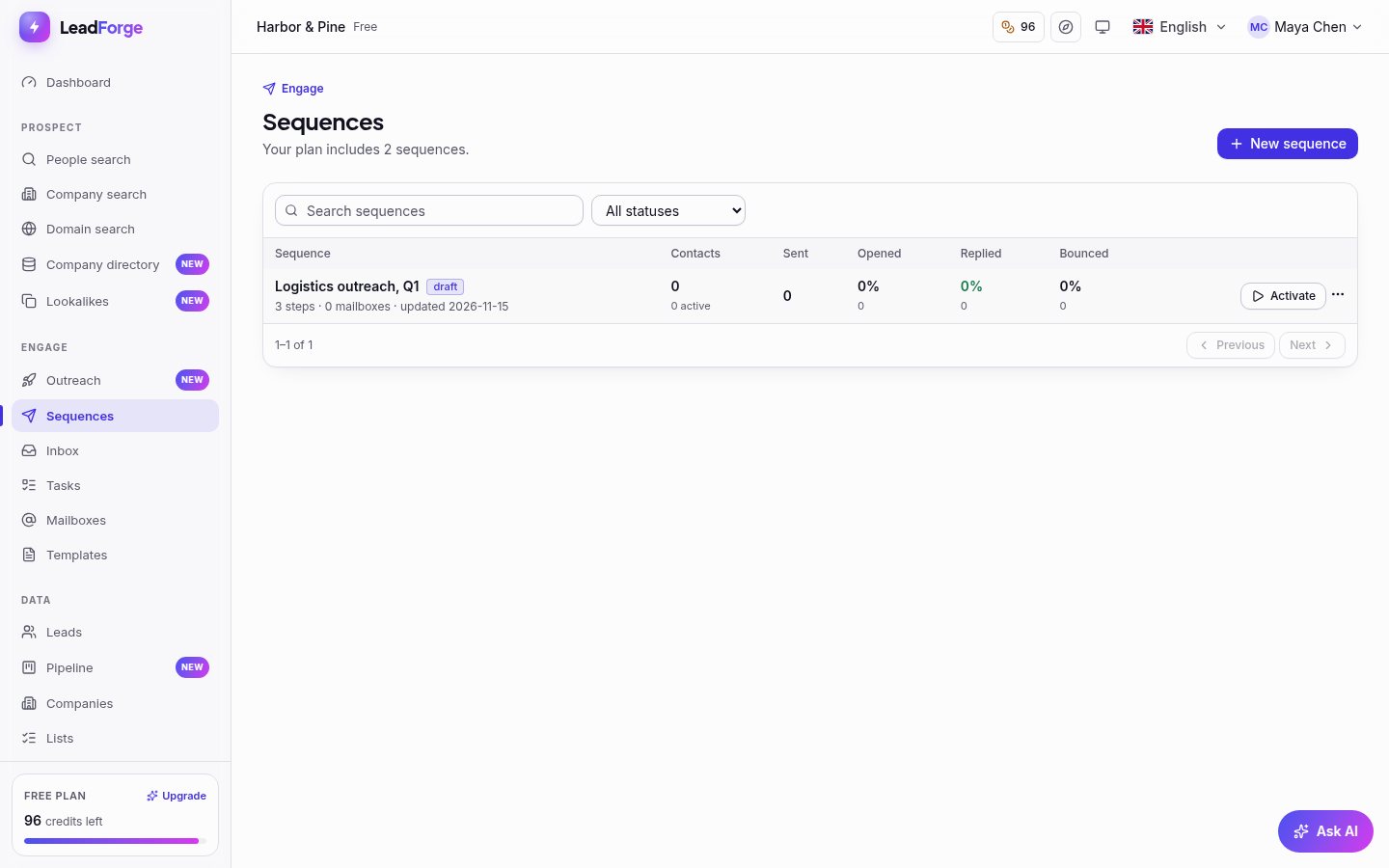
Enrol leads from the leads table or a list, then activate the sequence. Do-not-contact, suppressed and invalid addresses are always refused. Catch-all and unverified addresses are only enrolled if the sequence allows them.
5. Work the inbox
Replies appear here, and you can answer in the same thread.
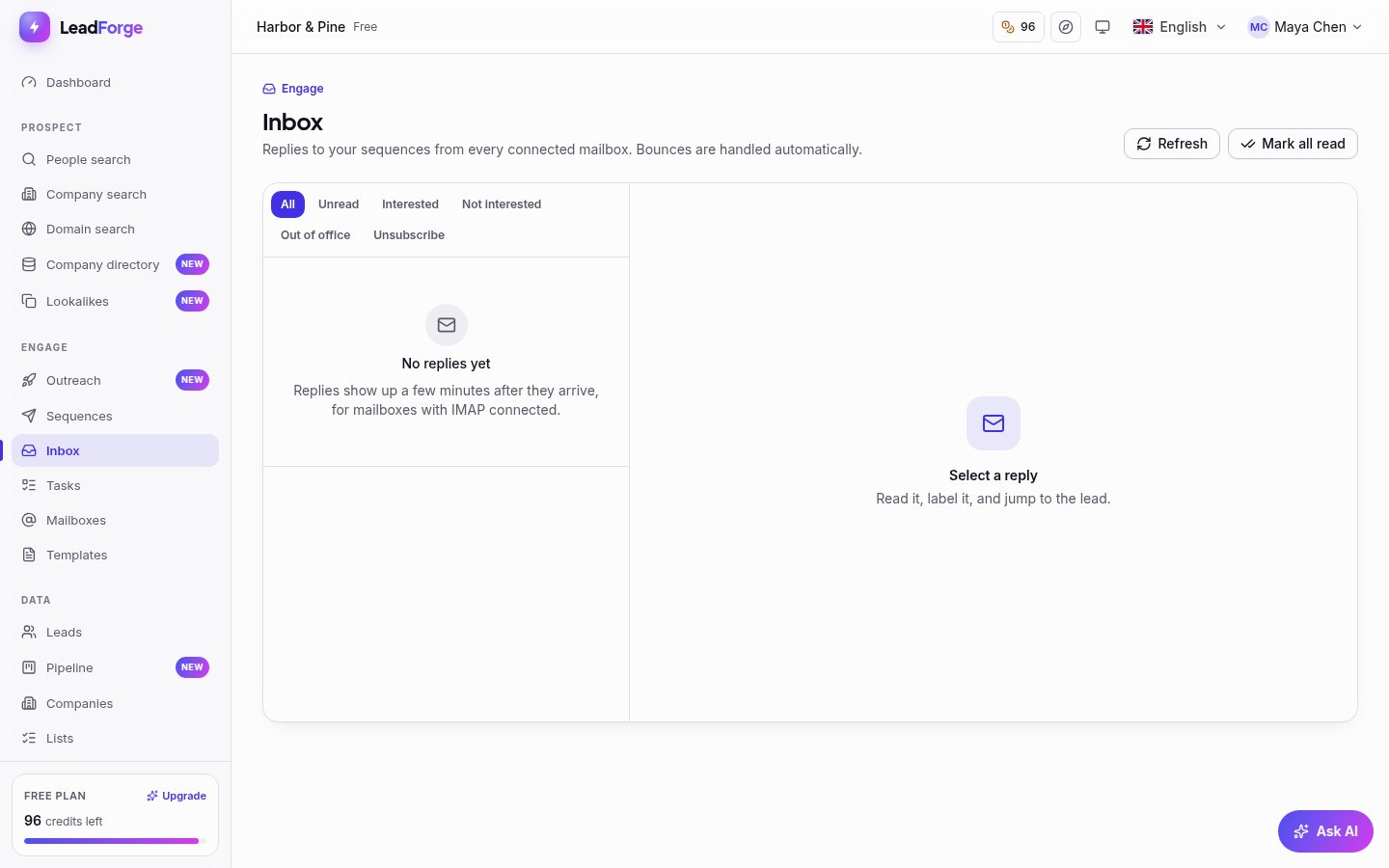
A reply appears in the Inbox. Answer in the same thread from the same mailbox.
A bounce marks the address invalid and stops the sequence for that person.
Tasks collects manual steps and follow-ups that are due.
Sending well
Send to people with a reason to care about what you offer, and keep each email short and specific.
Respect the daily cap and send window. Slow and steady protects your domain.
Honour every opt-out. We suppress opted-out addresses across the whole platform.
Follow the laws that apply to your recipients, such as CAN-SPAM, GDPR/PECR and CASL. You are responsible for the content and targeting of your emails.
9. Integrations, in-house engines and zero-leak security
100% in-house outbound, lead quality, verifier and visitor engines, HubSpot push, webhooks and frontend-only zero-leak API protection.
100% in-house native engines (zero third-party API cost)
The Integrations page showcases our 22 built-in native capability engines across four categories: Cold Outbound & Email Warmup, Lead Quality & Waterfall Enrichment, 7-Stage Email Verification & Toxicity Detection, and Website Visitor De-Anonymization & Intent Signals. Every engine runs natively inside the platform without paying external third-party API providers.
HubSpot
In-house native engines and HubSpot CRM connection.
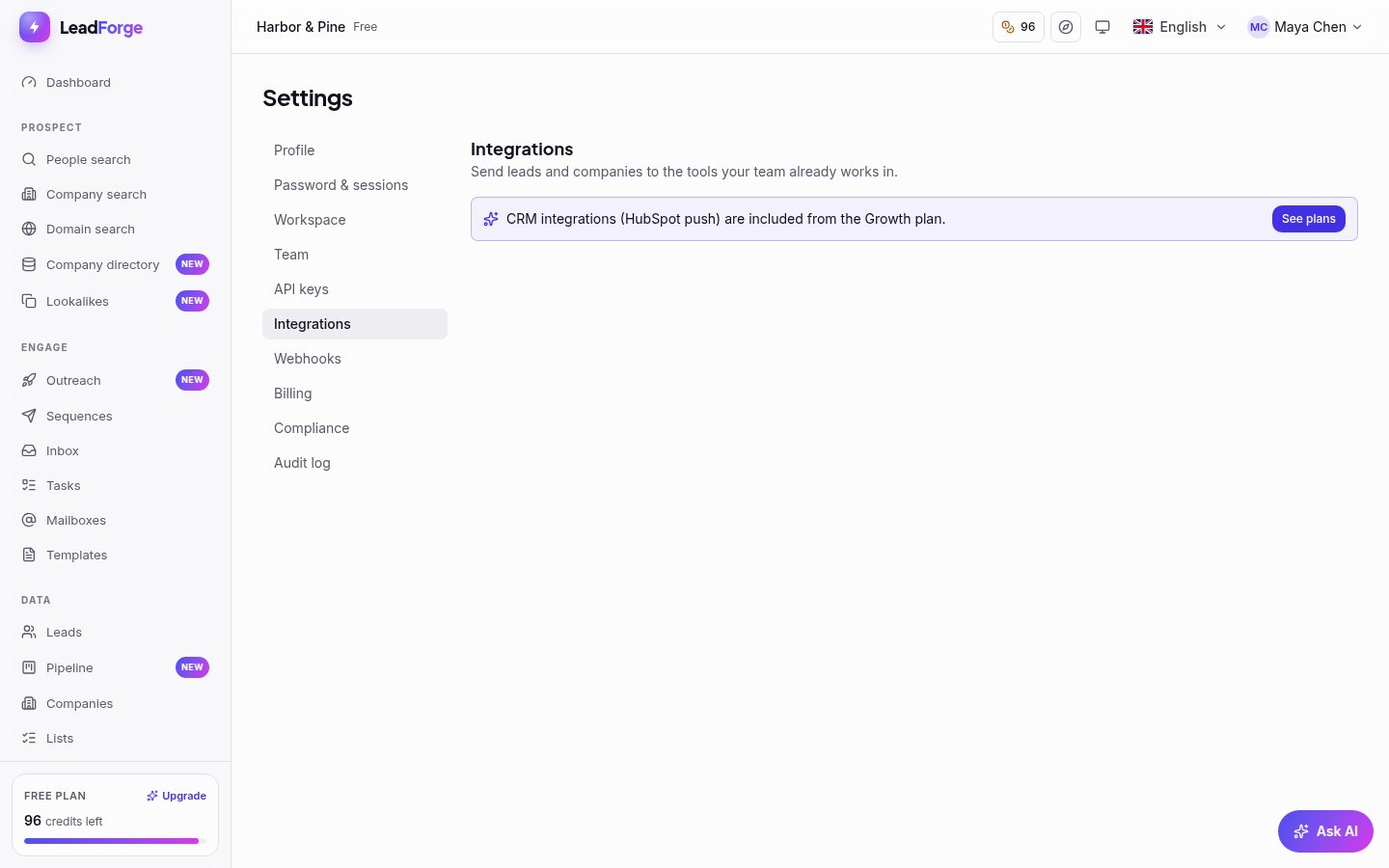
On plans that include CRM export, connect a HubSpot private-app token (stored encrypted), then push selected leads or a whole list as contacts and companies, with their association. Pushes happen when you ask for them. Automatic two-way sync is not built yet.
Chrome extension
The extension enriches the company website you are on, finds an email and saves a lead into a list.
API keys and zero-leak frontend-only gateway lock
Keys are shown once, then only their prefix.
Zero-Leak Frontend-Only Gateway Lock: The backend API only accepts requests signed with a short-lived HMAC-SHA256 signature (X-BFF-Timestamp and X-BFF-Signature) from the Next.js web application.
Even if a token, API key or session cookie is leaked, calling the backend directly or calling the frontend proxy from Postman, Insomnia, curl or external scripts is blocked with 403 Forbidden.
Browser Fingerprint Binding: Every session token and cookie is cryptographically bound to the original browser User-Agent (fgp claim and lg_fp cookie), so replaying a stolen cookie in another client immediately fails with 401 token_fingerprint_mismatch.
Webhooks
Webhook endpoints and their delivery log.
Receive events such as lead.created, lead.verified, company.enriched, job.completed and credits.low.
Endpoints must use HTTPS. Each delivery is signed with HMAC-SHA256 and a per-endpoint secret.
Failed deliveries retry up to eight times. An endpoint that fails 20 times in a row is disabled until you re-enable it.
The delivery log shows each payload and lets you redeliver.
Not built yet
Salesforce sync
Zapier and Make apps
Sign-in with Google or Microsoft for mailboxes
Automatic HubSpot sync in both directions
10. Credits and billing
What each action costs, what is free and how plans work.
How credits work
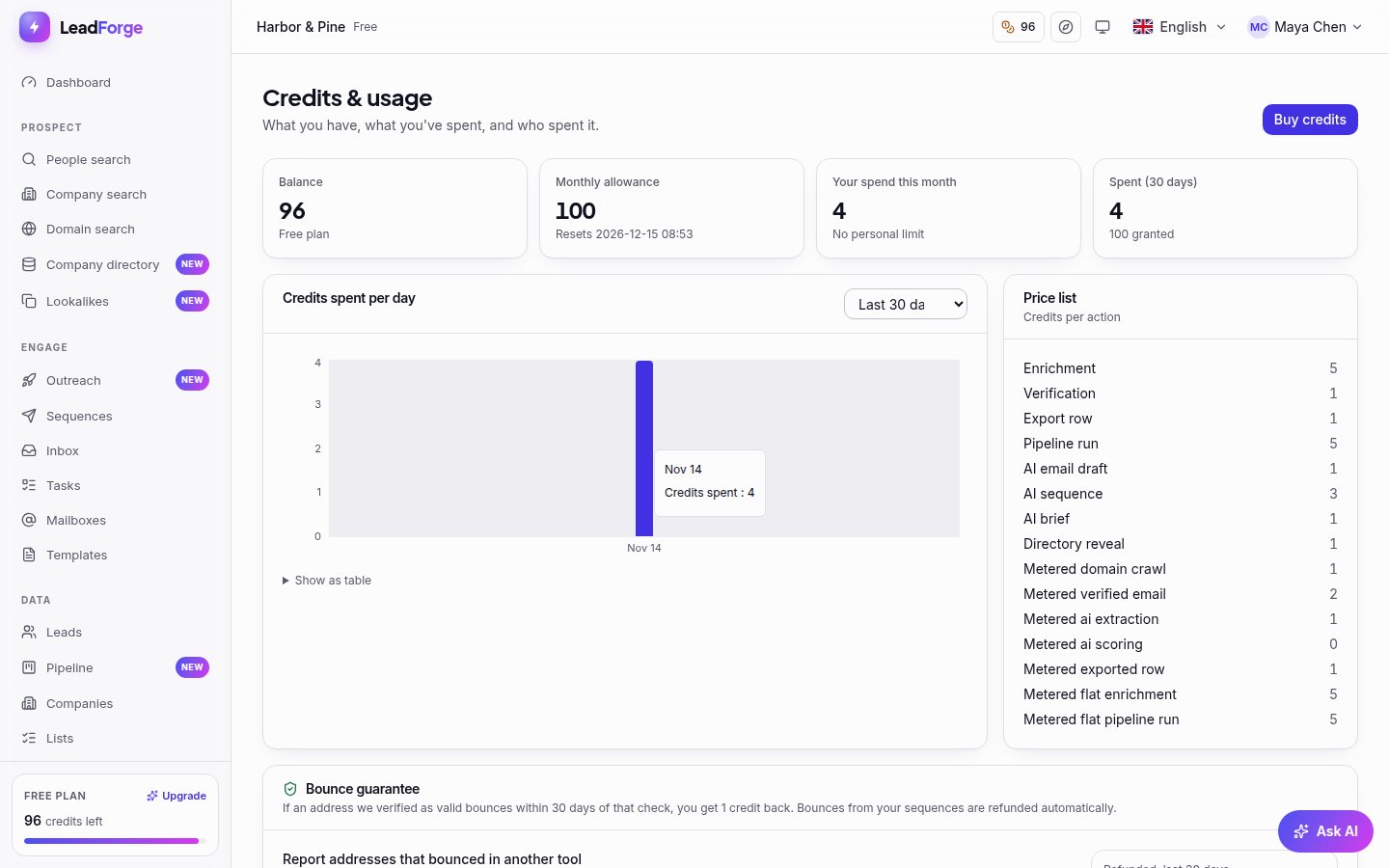
Balance, usage and a full history of every charge and refund.
Credits belong to the workspace and everyone spends from the same balance. The history records who spent what. Owners and admins can cap an individual member's monthly spend.
Action
Credits
Reveal / add a company or lead from the Common Directory
1 per new record
Enrich a company, pay per result
1 to read + 1 if people found + 2 per email checked
Enrich a company, quick
5 (refunded if no people found)
Bulk enrich
5 per company
Import with enrichment
5 per distinct company
Verify an email (7-stage + toxicity score)
1 (free if checked in the last 24 h or unknown)
Find an email
1 if found, free if not
Export leads
1 per row received
AI account brief
1, only when written
Search, scoring, lists, saved searches, editing
Free
Rules you can rely on
Nothing found, nothing charged for the email finder and for failed pay-per-result enrichment.
Failed and cancelled jobs are refunded automatically and the refund shows in your history.
The same request twice is charged once.
You can never go below zero. If you do not have enough you see how many are needed and available.
Plans and billing
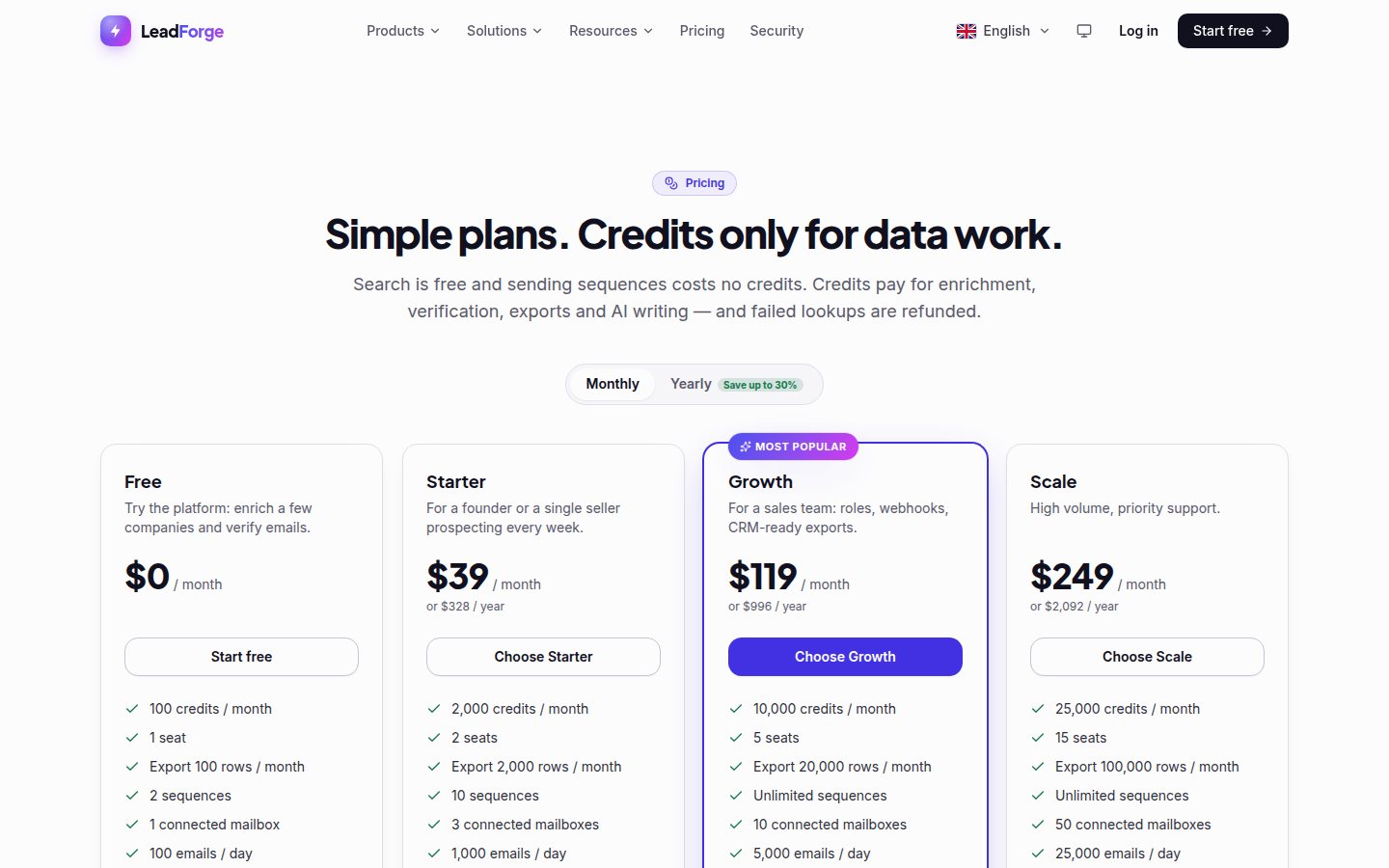
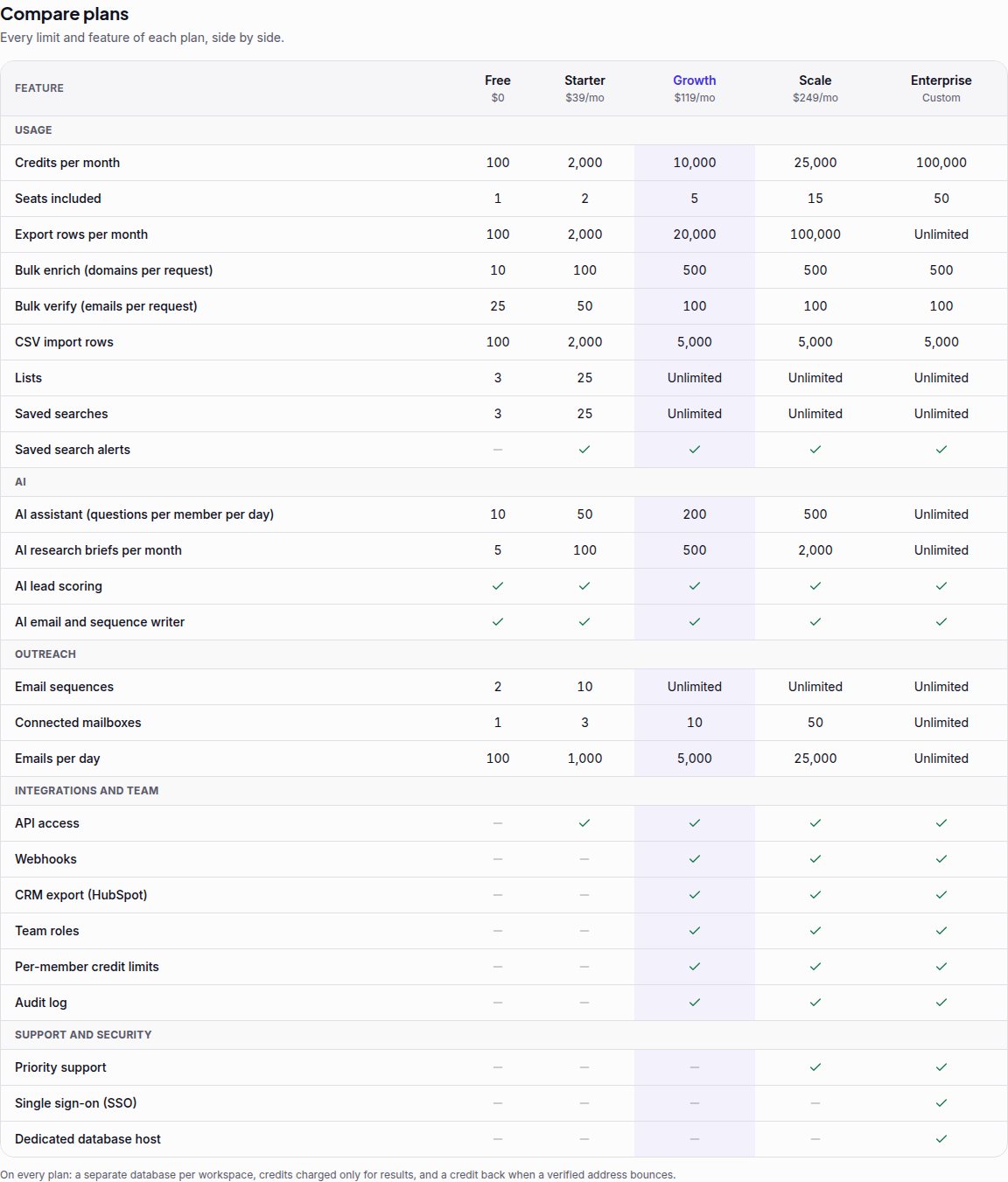
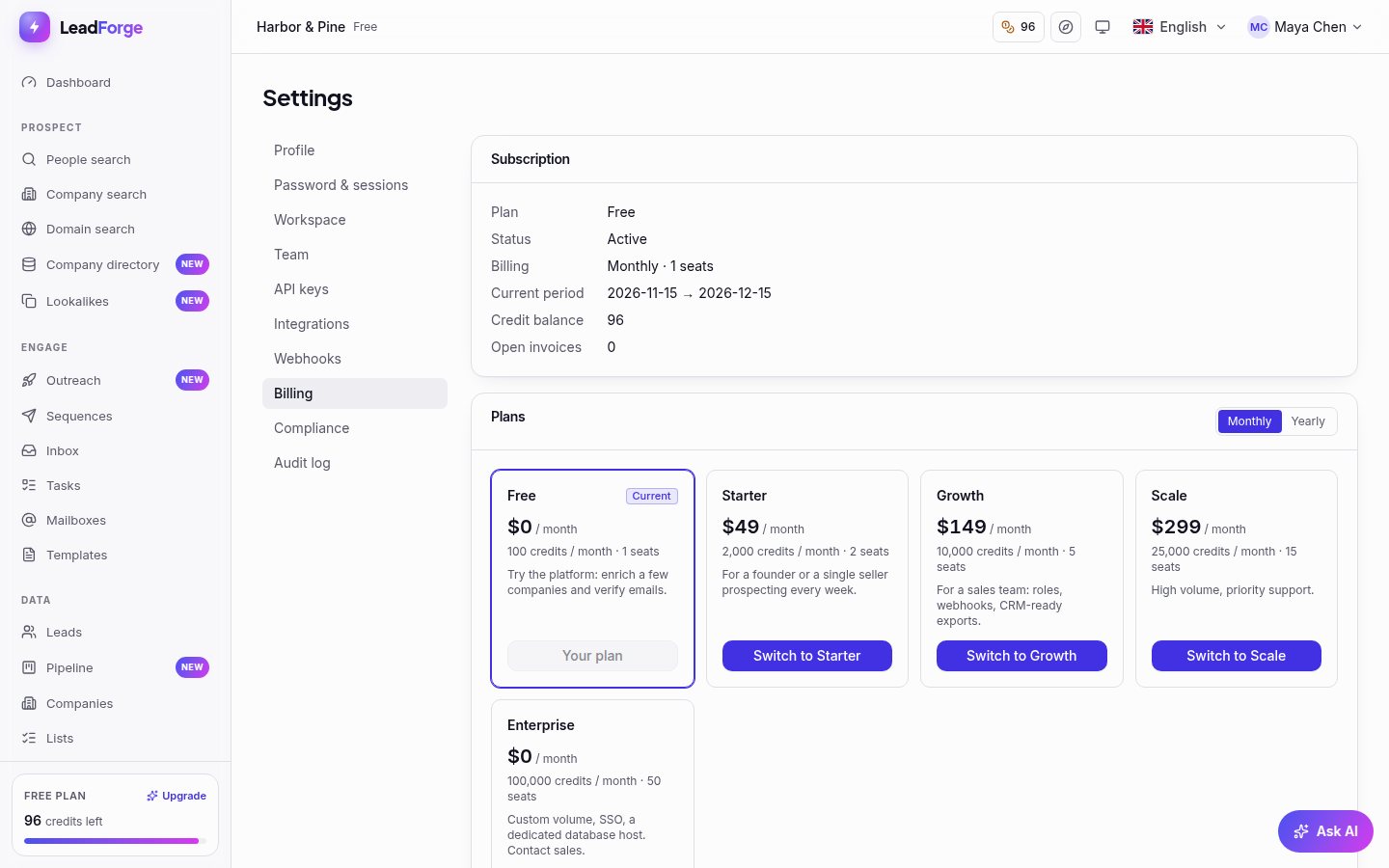
Public pricing and a credit calculator.Compare plans lists every limit and feature of each plan side by side, including the AI assistant and AI research allowances.Plan, credit packs and invoices.
Open Settings, then Billing to change plan, buy a credit pack, manage cards or cancel. Paid plans top your balance up each month to the plan's quota. Upgrading grants the difference immediately.
11. Team, security and privacy
Invite colleagues, understand roles, and handle opt-outs and privacy requests.
Invite your team
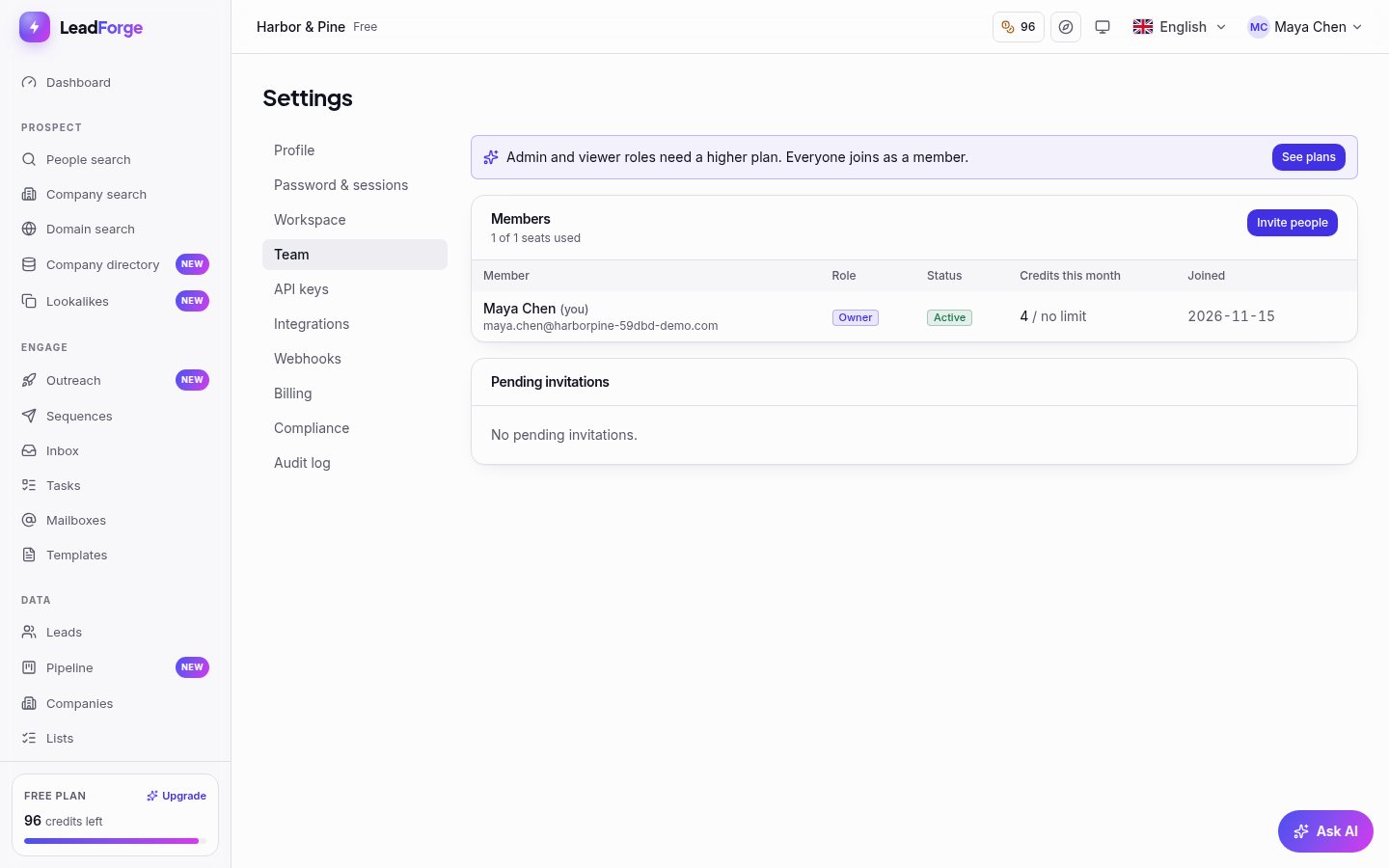
Members, roles and invitations.
1Owners and admins open Settings, then Team, and choose Invite.
2Enter the email and a role. The person receives a link valid for seven days.
3Every active member and every open invitation uses a seat.
What you can do
Viewer
Member
Admin
Owner
See data and balance
Yes
Yes
Yes
Yes
Create and edit leads, enrich, verify, export
Yes
Yes
Yes
Invite members, API keys, webhooks, billing
Yes
Yes
Delete the workspace, transfer ownership
Yes
Account security and zero-leak protection
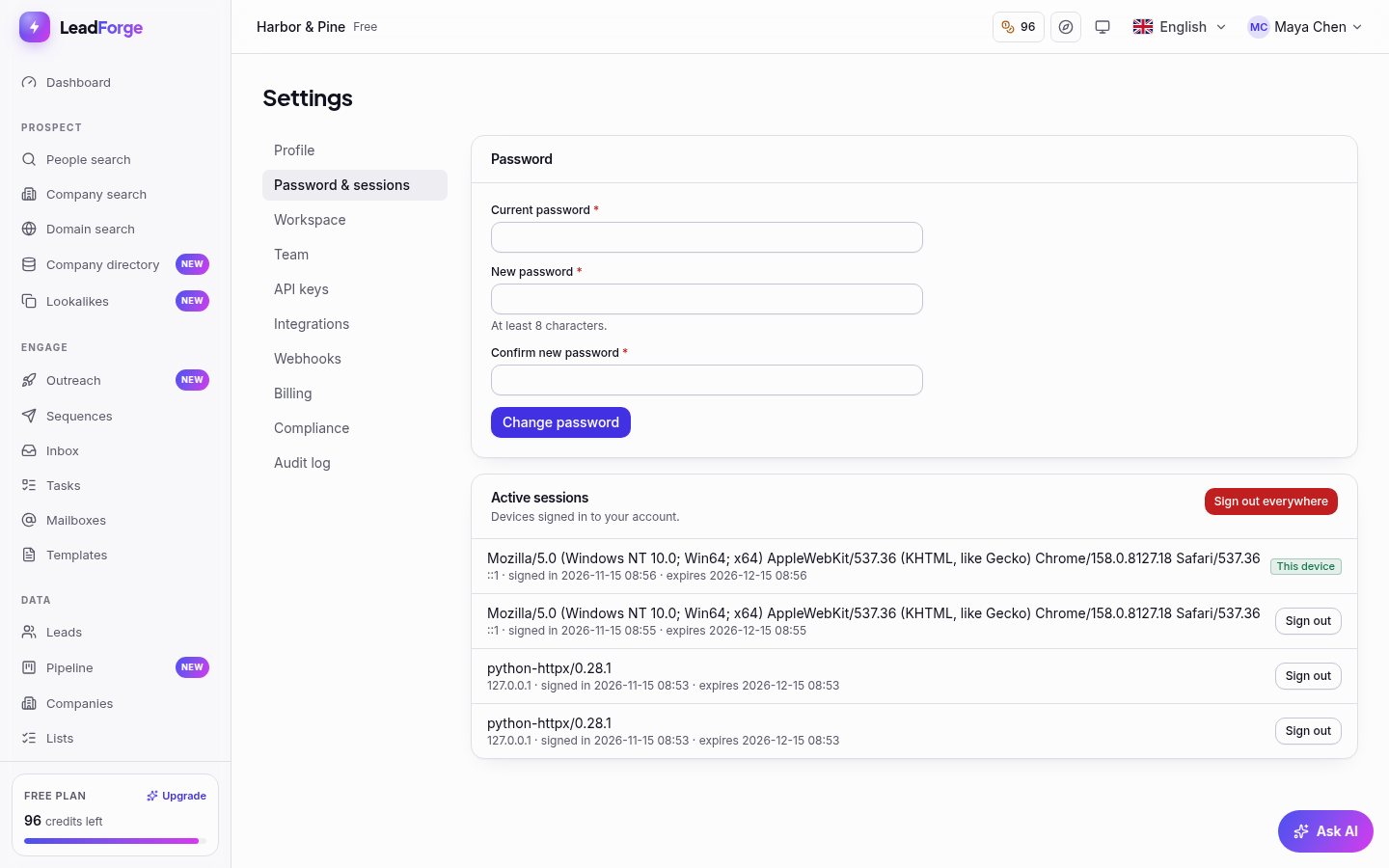
Active sessions and password.
See every signed-in device and sign any of them out.
Changing your password signs out your other devices.
Session tokens stay in httpOnly cookies and are cryptographically bound to your browser fingerprint (fgp claim and lg_fp cookie). Stolen tokens or cookies cannot be used in Postman, curl or another browser.
All requests are verified by the frontend BFF HMAC gateway, preventing direct external API calls.
The audit log (Growth and above) records sign-ins, role changes, API keys and billing changes.
Opt-outs and do-not-contact
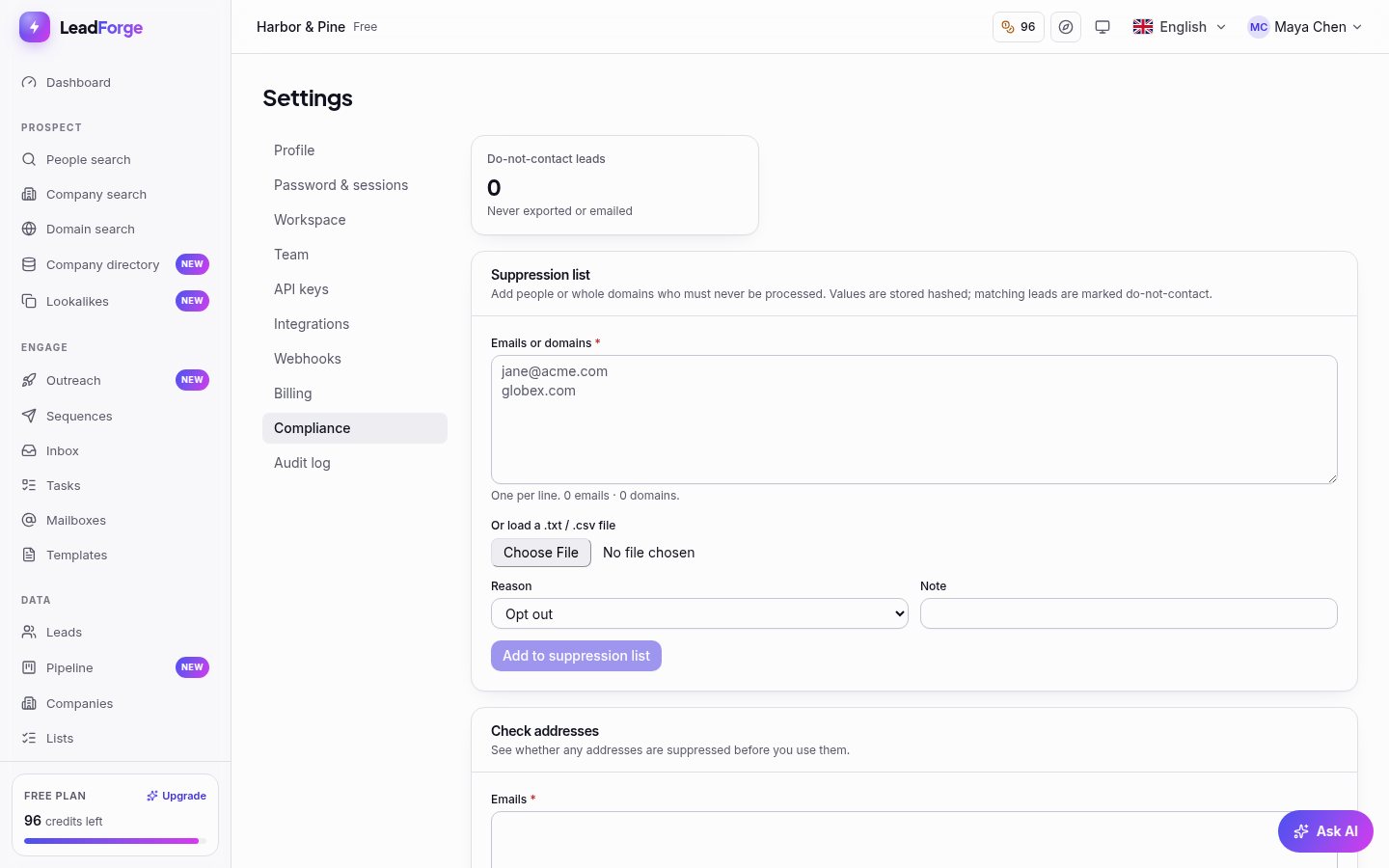
Upload opt-outs and check an address against the suppression list.
Anyone who opts out is stored as a hash and honoured in every workspace.
Suppressed and do-not-contact people are skipped by import, enrichment, export and sequences.
Upload your own opt-out list and check any address against the suppression list.
Privacy, visitor intelligence and cookies
People can ask for access, erasure or an opt-out on the Privacy requests page. We verify the request by email and apply it across every workspace.
Visitor geolocation, network ASN company inference and identified visitor contact info are captured in the control plane and synced to the Common Directory while respecting suppression rules.
The cookie banner lets you reject everything optional. You can change your choice at any time from the footer link.
We honour Global Privacy Control and Do Not Track for optional tracking.
12. Troubleshooting and FAQ
Common messages, what they mean and what to do.
Messages you may see
Message
What it means
What to do
insufficient_credits
Not enough credits for this action
Buy a pack or upgrade. The message shows how many are needed
plan_limit
Your plan's limit for this feature is reached
Remove something, narrow the request or upgrade
account_locked
Five wrong passwords
Wait 15 minutes or reset your password
email_unverified
Your email is not confirmed yet
Click the link in the confirmation email, or resend it
lead_exists
A lead with this email already exists
Open the existing lead instead
suppressed
This person or domain has opted out
They cannot be added or contacted
direct_api_access_forbidden
A request tried to call the backend API directly outside the web frontend
Use the web application interface; direct external calls are blocked
token_fingerprint_mismatch
A session token or cookie was replayed from a different browser or tool (such as Postman)
Sign in again from your browser
csrf_rejected
A request came from an external origin, Postman, curl or carried a raw Bearer/API-key header
Perform the action from the web application in your browser
unreachable (company)
The site blocks crawlers or shows an anti-bot check
We do not bypass it. Add the people manually or import them
unknown (email)
The mail server gave no conclusive answer
Try again later. It was not charged
Questions people ask
Why is my first search empty? Search covers your own data and the directory. Add companies from the directory, enrich a domain or import a CSV first.
Why did a verification say catch-all? The company's mail server accepts every address, so we cannot prove this one exists. Expect some bounces.
Can I get my credits back? Failed and cancelled jobs are refunded automatically. Addresses we verified as valid that hard-bounce are covered by the bounce guarantee. See the Refund Policy for the rest.
Where is my data stored? In a database that belongs to your workspace alone. See the Security page.
Can I delete everything? Owners can delete the workspace. Data is kept for 30 days and then erased permanently.
Can the AI assistant see my leads? No. It sees your question, plan, role and credit balance only. See the AI assistant guide.